META_DESCRIPTION: The 7 best streaming video recording software tools in 2026, tested for Twitch, YouTube Live, and Dailymotion. Free and paid options, legal guide included.
title: “Best Streaming Video Recording Software 2026: Complete Guide”
slug: “best-streaming-video-recording-software-2026”
domain: “bestvideodownloader.net”
primary_keyword: “streaming video recording software”
date: 2026-07-19
word_count: 2450
status: draft
author: “Alex Kumar”
schema:
– Article
– FAQPage
– Author
post_id: 2030
Best Streaming Video Recording Software 2026: Complete Guide
This article contains affiliate links. We may earn a commission at no extra cost to you.
If you want to record a live stream in 2026, you have more options than ever and more reasons to pick carefully. Platform terms of service have tightened. OBS Studio still dominates the conversation, but it isn’t the right tool for every situation. This guide covers seven tools worth installing, what each one does well, and the one legal question you can’t skip before you hit record.
What Is Streaming Video Recording Software?
Streaming video recording software captures live video from a broadcast platform or your screen and saves it as a local file. It doesn’t require a download link. It works by grabbing the video output directly, either from a platform’s stream URL or from your display, while the stream plays.
There are two broad approaches. The first is screen-capture tools like OBS Studio and Bandicam, which record whatever plays on your screen. The second is stream-grabbers like 4K Video Downloader Plus, which pull the stream file directly from the platform without screen capture. Stream-grabbers tend to produce cleaner output with no UI artifacts, but they depend on the platform making the stream accessible. Screen capture works on almost anything that plays in a browser or app.
Knowing which approach fits your situation is the first decision to make before you pick a tool.
[INTERNAL_LINK: how to download streaming videos legally 2026]
The 2026 Legal Reality: What You Can Still Record
Recording public DRM-free streams for personal, offline use remains legally defensible in most jurisdictions, but platform ToS has tightened and the line between personal use and redistribution is sharper than it used to be.
Twitch: Twitch’s Terms of Service (legal.twitch.tv) don’t explicitly ban viewers from recording streams for personal use. Twitch VODs expire after 7 days for regular users, 14 days for Affiliates, and 60 days for Partners. Recording a stream you’d otherwise lose access to is a common and understood use case. The legal risk shifts the moment you redistribute that recording anywhere.
YouTube Live: YouTube’s ToS technically prohibits downloading or recording streams without permission. That said, a US court in February 2026 affirmed that third-party downloading from YouTube doesn’t automatically violate the DMCA [verify before publishing]. Recording a live stream for personal offline viewing sits in a similar grey area to recording a TV broadcast, with no active enforcement actions against individual viewers known as of mid-2026.
Dailymotion and Vimeo: Both platforms allow content owners to disable downloads, but recording via screen capture for personal use isn’t explicitly addressed in their viewer-facing ToS as of mid-2026.
The music problem: This is where people actually get into trouble. If a streamer plays licensed music during their broadcast and you record the full stream and upload it anywhere, you’re distributing copyrighted material without a license. The streamer’s music license doesn’t transfer to your recording. Personal offline storage is defensible. Uploading is not.
The short version: recording a DRM-free stream you have lawful access to, for personal offline viewing, without redistribution, is defensible in most jurisdictions. Publishing that recording changes the calculation entirely.
The 7 Best Streaming Video Recording Tools in 2026
These seven tools cover the full range from free open-source to paid one-time-purchase, and from beginner-simple to full-control professional.
1. OBS Studio (Free, Windows/Mac/Linux)
OBS Studio is the standard for screen-capture based stream recording. It’s free, open source, and runs on every major platform. Version 32 (2026) improved stability without changing the core workflow.
What it does well: OBS gives you full control over bitrate, encoder, resolution, and file format. For recording Twitch or YouTube Live, you set up a Browser Source with the stream URL, or capture your display while the stream plays in a browser. Recording to Hybrid MP4 (added in recent versions) means the file won’t corrupt if your machine crashes mid-recording.
Best settings for stream recording in 2026:
– Output format: Hybrid MP4
– Encoder: NVENC H.264 (NVIDIA GPU) or x264 (CPU)
– Bitrate: 6,000 to 9,000 Kbps for 1080p
– Frame rate: 60 fps for gaming streams, 30 fps for talk or commentary content
– Rate control: CQP for recording (not CBR)
Drawback: The setup takes time if you’re new to it. OBS has a real learning curve that takes an afternoon to clear. It also captures your desktop UI unless you configure your capture source carefully.
Best for: Anyone who needs reliable, zero-cost, full-control recording with no capture limits.
2. 4K Video Downloader Plus (Free tier + $15/year, Windows/Mac/Linux)
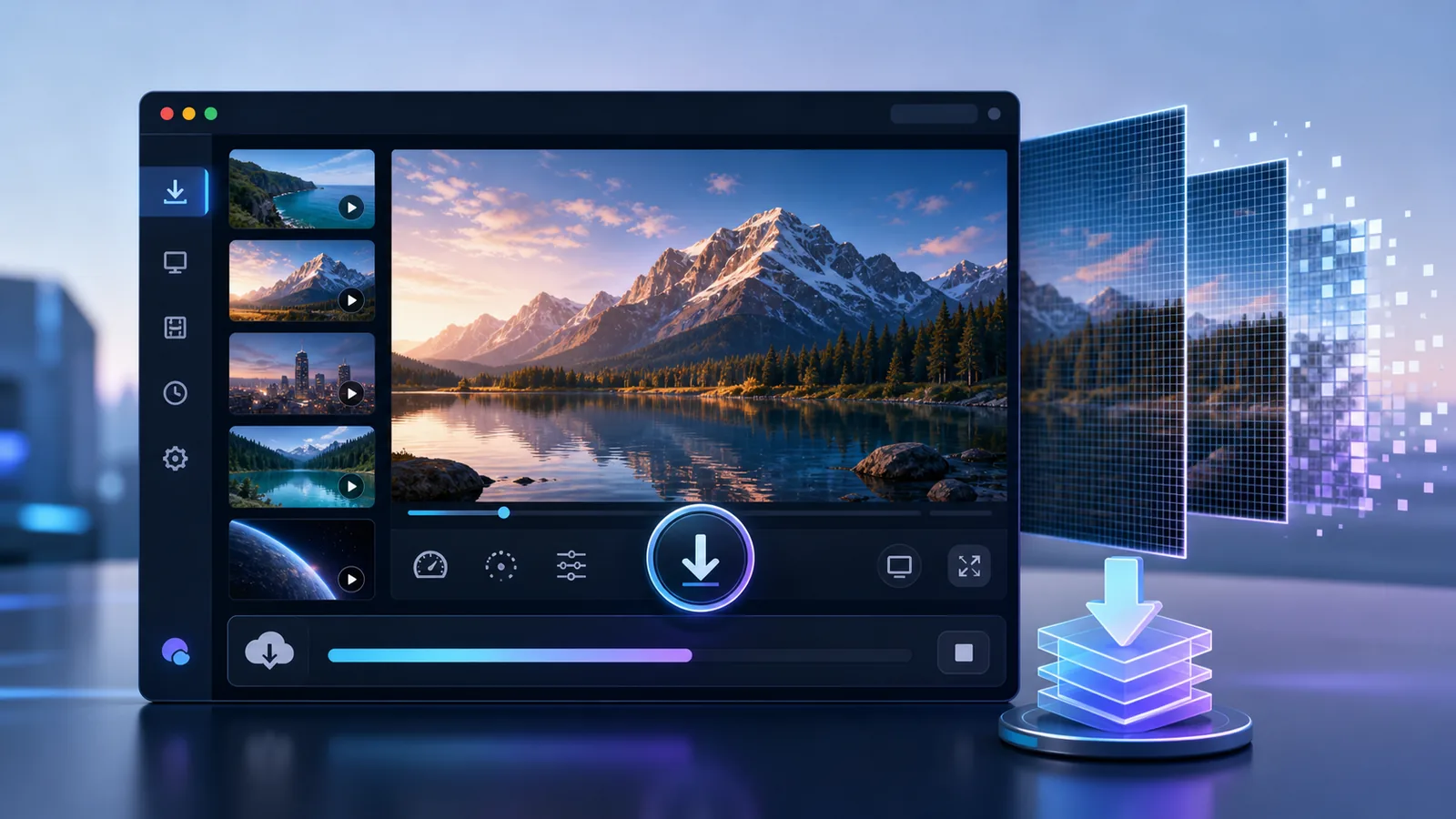
4K Video Downloader Plus takes a different approach than screen-capture tools. Rather than recording your screen, it pulls the stream file directly from the platform, producing a clean video file without any UI artifacts or taskbar visible in the output.
It supports Twitch, YouTube (including live streams in progress), Vimeo, Facebook, Dailymotion, and more than 40 other platforms. You paste the stream URL, choose your resolution (up to 4K and 8K where available), and it downloads or records directly. No configuration required.
The 2026 Plus version added AI audio processing: vocal isolation, background noise removal, and echo reduction. These features are useful if you’re recording a podcast stream or interview where audio quality matters. The Smart Mode feature remembers your preferred quality and format settings so you don’t reconfigure on every capture.
Pricing: Free tier covers basic functionality with session limits. The Personal plan is a $25 one-time payment for up to 3 devices. The Lite plan runs $15/year. Pro is $45 one-time for commercial use.
Drawback: The free tier limits the number of streams you can download per session. It doesn’t record DRM-protected content, so paid platforms like Netflix or Disney+ are off limits.
Best for: Non-technical users who want clean stream captures from Twitch, YouTube Live, or Dailymotion without configuring a full screen recorder.
Download 4K Video Downloader Plus
3. Bandicam (Free tier + $49 one-time, Windows only)
Bandicam is a Windows-only screen recorder built for low CPU overhead. Its game-capture mode records at up to 4K and 480 fps, making it the preferred tool for high-frame-rate gaming streams. For streaming video recording specifically, you use its Screen Recording Mode: open the stream in your browser, set Bandicam’s capture area over the browser window, and hit record.
The output is clean, the compression is efficient, and the software won’t noticeably slow down your machine during recording. A three-hour live stream recording with Bandicam shows no audio sync drift, which is a common failure point with general-purpose screen recorders.
Drawback: Windows only. The free version adds a watermark to all recordings. There’s no Linux or Mac build.
Best for: Windows users recording gaming streams who want minimal CPU impact and high frame rate capability.
4. ShareX (Free, Windows only)
ShareX is an open-source screen recorder and screenshot tool that has developed a dedicated following for one reason: it’s entirely free, has no watermark, and delivers genuinely useful features. It supports scheduled recordings, region-based capture, and over a dozen upload and share integrations.
For streaming video recording, you use the Screen Recording mode to capture your browser window while a stream plays. Output options include MP4, WebM, and GIF. ShareX also includes a built-in video editor and task automation that can automatically compress and rename recordings after capture completes.
Drawback: The interface is dense and not designed to be approachable on first launch. Also Windows-only.
Best for: Windows power users who want OBS-level control without the streaming-focused overhead, or anyone who wants a fully free, no-watermark option without OBS’s complexity.
[INTERNAL_LINK: best free screen recorder software no watermark 2026]
5. ClipGrab (Free, Windows/Mac/Linux)
ClipGrab is an open-source video grabber that works similarly to 4K Video Downloader Plus: you paste a URL and it retrieves the video file directly rather than recording your screen. It supports YouTube, Vimeo, Dailymotion, and a handful of other platforms.
In 2026, the honest assessment is mixed. A patch released April 24, 2026 updated the tool, but YouTube support remains intermittent for many users according to current user reports. The GitHub repository shows sparse maintenance activity. For non-YouTube platforms like Vimeo and Dailymotion, ClipGrab is more reliable.
One known issue: the standard Windows installer has historically bundled RAV Endpoint Protection, an unwanted antivirus, through the InstallCore installer system. Download from the official site at clipgrab.de, not third-party download aggregators, and decline any bundled software during the install process.
Drawback: YouTube support is unreliable as of mid-2026. Development activity has slowed significantly. For YouTube Live specifically, 4K Video Downloader Plus or OBS are more dependable choices.
Best for: Recording Vimeo, Dailymotion, or other non-YouTube streams where you want a lightweight, free URL-grabber with no subscription.
6. Streamlabs Desktop (Free + paid plans, Windows/Mac)
Streamlabs Desktop runs on the OBS engine but wraps it in a significantly more approachable interface. It adds stream alerts, overlay themes, a built-in widget library, and a cloud backup for your settings. Logitech owns Streamlabs and has continued active development through 2026.
For stream recording, it behaves like OBS: you capture your screen while the stream plays. The advantage over raw OBS is that setup takes minutes rather than an afternoon. The dashboard shows clear recording controls without navigating OBS’s settings tree.
Drawback: The free version shows Streamlabs branding in some outputs. Full features require a paid Ultra subscription at $19/month, which is priced for streamers who need all the broadcast tools, not just recording.
Best for: Users who want OBS-quality recording but find OBS’s setup too involved, and who may also stream their own content.
7. Fraps (Free limited / $37 one-time, Windows only)
Fraps is one of the oldest names in screen capture. It shows your frame rate overlay and can record screen video on Windows. In 2026, it remains functional for basic recording tasks, but development stopped years ago. It has no active support and doesn’t support modern encoder options like NVENC.
Its main use case in 2026 is legacy: users who have older machines or established workflows built around it. For any new setup, OBS or ShareX are the better choices.
Drawback: Abandoned software with no updates since approximately 2013. No hardware encoder support. No active maintenance.
Best for: Existing users with established Fraps workflows on older Windows machines who don’t need to change what’s working.
Free vs Paid: Quick Comparison Table
| Tool | Price | Platform | No Watermark | Stream URL Grab | Active 2026 |
|---|---|---|---|---|---|
| OBS Studio | Free | Win/Mac/Linux | Yes | No (screen cap) | Yes |
| 4K Video Downloader Plus | Free/$15-45 | Win/Mac/Linux | Yes | Yes | Yes |
| Bandicam | Free/$49 | Windows only | Paid only | No (screen cap) | Yes |
| ShareX | Free | Windows only | Yes | No (screen cap) | Yes |
| ClipGrab | Free | Win/Mac/Linux | Yes | Yes (partial) | Partial |
| Streamlabs Desktop | Free/$19mo | Win/Mac | Paid only | No (screen cap) | Yes |
| Fraps | Free/$37 | Windows only | Paid only | No (screen cap) | Abandoned |
How to Choose the Right Tool
The right tool depends on three factors: your platform (Windows/Mac/Linux), your technical comfort level, and whether you need clean URL-based capture or screen recording is acceptable.
If you’re recording Twitch VODs before they expire: 4K Video Downloader Plus is the cleanest option. You get the stream file directly at original quality, without any screen-capture artifacts. OBS works too, but you’re recording your display rather than the file itself.
If you’re recording YouTube Live: Same recommendation. 4K Video Downloader Plus handles YouTube Live streams directly. For zero-budget workflows, OBS with a Browser Source set to the stream URL is reliable.
If you’re on Mac: OBS Studio or 4K Video Downloader Plus. Bandicam, ShareX, and Fraps don’t have Mac builds.
If you need zero budget: OBS Studio on all platforms, or ShareX on Windows only. Both are free, no watermark, and actively maintained.
If you’re recording gaming streams and care about frame rate: Bandicam on Windows. Its game-capture mode handles high frame rates better than general-purpose screen recorders.
If you’re non-technical and want something that works without setup: 4K Video Downloader Plus. The workflow is: paste URL, choose quality, click download. No configuration required.
[INTERNAL_LINK: best video downloader software for PC Mac 2026]
OBS Studio Setup: Record a Live Stream in 5 Steps
This is the fastest working setup for recording a Twitch or YouTube Live stream in OBS Studio. It takes about 10 minutes on a fresh install.
Step 1: Download OBS Studio from obsproject.com. It’s free and the installer is clean with no bundled software.
Step 2: Add a Browser Source. In the Sources panel, click the + button, choose Browser, and paste the stream URL (the full Twitch channel URL or YouTube Live page URL). Set width to 1920 and height to 1080.
Step 3: Configure output settings. Go to Settings > Output. Set the output format to Hybrid MP4. Select your encoder: NVENC H.264 if you have an NVIDIA GPU, or x264 for CPU encoding. Set bitrate to 6,000 Kbps for 1080p recordings.
Step 4: Set your frame rate. Go to Settings > Video. Set Output Resolution to 1920×1080. Set Common FPS Value to 60 for gaming streams or 30 for talk and commentary content.
Step 5: Hit Start Recording. The recording saves to the path shown in Settings > Output > Recording Path. The default is your Videos folder. Hybrid MP4 format is crash-resilient: if something interrupts the recording, the file won’t be corrupted.
That’s it. The stream records until you click Stop Recording.
Stream Recording for European Users: What You Need to Know
Stream recording workflows have specific considerations for users in the EU and UK that most guides skip entirely. The European Copyright Directive (Article 17, implemented across EU member states by 2024-2025) focuses primarily on upload filters and platform liability for uploaded content, not personal offline recording by viewers. Recording a public stream for personal, non-commercial use remains outside the scope of active enforcement in France, Germany, Spain, the Netherlands, and the United Kingdom as of mid-2026. The key legal boundary is redistribution: keeping a recording for personal playback is treated differently from uploading or sharing it. Users in Switzerland operate under Swiss copyright law (URG), which includes a private copy exception that generally permits recording publicly accessible broadcasts for personal use. If you’re recording content involving Swiss creators or platforms, the same redistribution caution applies regardless of jurisdiction. VPN usage doesn’t change your legal position in your home country. Always check the specific ToS of the platform you’re recording from, since platform bans (account suspension) can occur independent of legal liability. [verify before publishing]
Frequently Asked Questions
Is it legal to record a Twitch stream in 2026?
Recording a Twitch stream for personal offline viewing is a legal grey area rather than a clear violation in most jurisdictions. Twitch’s ToS doesn’t explicitly prohibit viewers from recording. The legal risk comes from redistribution: uploading or sharing a recording of copyrighted content, including streams with licensed music, can trigger copyright claims or account actions.
Can OBS Studio record YouTube Live streams directly?
Yes. Add a Browser Source in OBS with the YouTube Live page URL, configure your output settings, and click Start Recording. OBS captures whatever plays in that browser source. The output quality depends on your bitrate settings rather than the original stream quality.
What’s the difference between 4K Video Downloader Plus and OBS for stream recording?
4K Video Downloader Plus retrieves the stream file directly from the platform. OBS records your screen while the stream plays. Direct file retrieval produces cleaner output with no UI elements visible and quality matching the original stream. OBS works on more platforms but introduces screen-capture artifacts unless you configure it carefully.
Does ClipGrab still work for stream recording in 2026?
Partially. ClipGrab released a patch in April 2026, but YouTube support is unreliable for many users. It works more consistently with Vimeo and Dailymotion. For YouTube streams specifically, 4K Video Downloader Plus or OBS are more dependable in 2026.
Can I record Netflix or Disney+ streams?
No. Netflix, Disney+, and similar subscription platforms use DRM (Digital Rights Management) that prevents screen capture and direct stream extraction at the hardware level. Software tools can’t bypass DRM without violating the DMCA. This restriction applies to every tool in this guide.
Which streaming recorder works on Mac?
OBS Studio and 4K Video Downloader Plus both have active Mac builds in 2026. Bandicam, ShareX, and Fraps are Windows-only. Streamlabs Desktop has a Mac version but its feature set is more limited than on Windows.
Verdict: The Right Tool for Most Users
For most users recording Twitch or YouTube Live in 2026, 4K Video Downloader Plus is the strongest recommendation. It doesn’t require screen-capture configuration, produces clean output at original stream quality, runs on Windows, Mac, and Linux, and the Personal plan is a reasonable $25 one-time cost. The free tier covers occasional use without any commitment.
If you’re already comfortable with OBS Studio or need a zero-budget solution, OBS remains the most capable free option with no feature restrictions. Windows-only users who want free, no-watermark screen recording can use ShareX instead.
ClipGrab is worth being cautious about in 2026. Its YouTube support is inconsistent, and the Windows installer has a history of bundled software. If you use it, download only from clipgrab.de.
Get 4K Video Downloader Plus | Try ClipGrab free
Sources:
– Twitch Terms of Service: legal.twitch.com [verify before publishing]
– OBS Studio documentation and version 32 release notes: obsproject.com [verify before publishing]
– 4K Video Downloader Plus pricing and features: 4kdownload.com [verify before publishing]
– ClipGrab April 2026 release notes: clipgrab.de [verify before publishing]
– YouTube Terms of Service: youtube.com/t/terms [verify before publishing]
– EU Copyright Directive Article 17 implementation status [verify before publishing]
– Dacast OBS best settings guide: dacast.com [verify before publishing]
– OBS versions configuration reference: obs-versions.com [verify before publishing]
– StreamRecorder platform coverage: streamrecorder.io [verify before publishing]
Leave a Reply