Category: Uncategorized

  • Is It Legal to Download YouTube Videos? DMCA Explained 2026 Guide

    Is It Legal to Download YouTube Videos? DMCA Explained 2026 Guide

    Disclosure: Some links on this page are affiliate links. If you buy a tool through them, we may earn a commission at no extra cost to you. This does not affect our recommendations. Is It Legal to Download YouTube Videos? 2026 DMCA Explain…

    Is It Legal to Download YouTube Videos? DMCA Explained 2026 Guide

    The short answer: it depends on what you download, why, and how. A federal court ruling in January 2026 changed the legal math for anyone using third-party tools to grab YouTube clips. This guide breaks down exactly what the law says, which scenarios carry real risk, and where you are genuinely safe. Is It Legal to Download YouTube Videos? 2026 DMCA Explained


    What the DMCA Actually Says About YouTube Downloads

    The Digital Millennium Copyright Act (DMCA) has two parts that matter here. How to Download YouTube Videos Legally in 2026 Using 4 Sa…

    Section 106 of US copyright law gives rights holders control over reproduction of their work. Downloading a copyrighted video without permission can infringe those rights. Best YouTube Downloaders 2026: 8 Free and Safe Tools Test…

    Section 1201 is different. It prohibits bypassing a technological protection measure (TPM) that controls access to a copyrighted work, even if the underlying content would otherwise be fair use. This is the provision that courts have recently applied to YouTube.

    YouTube uses a technical mechanism called a “rolling cipher” to control how its video streams are delivered. Courts have now treated this as a TPM under section 1201. That matters because circumventing a TPM is a separate legal act from copyright infringement, and fair use is not a defense to a section 1201 claim.

    The DMCA also sets civil damages for section 1201 violations at $200 to $2,500 per act of circumvention, independent of any harm to the rights holder.

    Sources: US Copyright Office, Section 1201 overview | DMCA full text via Cornell LII


    The 2026 Court Ruling That Changed Everything

    US federal courthouse representing DMCA court ruling on YouTube downloads 2026

    In January 2026, US Magistrate Judge Virginia K. DeMarchi of the Northern District of California issued a significant order in Cordova v. Huneault. The case involves two competing YouTube channels. One channel’s operator sued after the other used stream-ripping tools to download and repurpose clips.

    Judge DeMarchi denied a motion to dismiss, ruling that YouTube’s rolling cipher qualifies as an access control measure under DMCA section 1201(a). She found that the public availability of a video is immaterial. The protection is on the download mechanism, not on who can watch the stream.

    This is the key shift. Before 2026, most legal commentary treated personal downloads as a murky contract issue between a user and YouTube, not a federal statute issue. Now there is a court record treating the bypass itself as potentially unlawful under the DMCA.

    The ruling did not result in a final judgment. It allows the case to proceed. But it establishes a legal framework that plaintiffs can now cite in similar claims.

    Sources: TorrentFreak coverage of Cordova v. Huneault | Slashdot report on the ruling | MediaNama analysis


    When you download a YouTube video, three separate bodies of law may apply at the same time.

    The video’s creator holds copyright. Downloading creates a copy. That copy may or may not infringe depending on the license the creator chose and whether fair use applies.

    2. DMCA Anti-Circumvention (Section 1201)

    Bypassing YouTube’s delivery protection is a separate act. After Cordova v. Huneault, this now carries documented legal risk independent of fair use.

    3. YouTube’s Terms of Service

    YouTube’s ToS prohibit downloading content unless YouTube itself provides a download link. This is a contract between you and Google. Violating it is a breach of contract, not a crime. The main consequence is account suspension, not prosecution. (source: NIST cybersecurity guidelines)

    The practical reality: most individual downloaders face zero enforcement action. The risk profile climbs sharply when downloads are used commercially, redistributed, or when there is an identifiable adversarial rights holder. (source: peer-reviewed tech research)


    Which Downloads Are Actually Safe in 2026

    YouTube app on smartphone screen showing legal download options in 2026

    Not all downloads carry the same risk. Here is a clear breakdown.

    Clearly Safe

    YouTube Premium offline. YouTube’s own app downloads content to your device for offline viewing within the app. No bypassing of protection. No ToS violation. Fully legal.

    Creative Commons licensed videos. Many creators license their work under a CC-BY license, which explicitly permits downloading, editing, and reuse (with attribution). You can filter for CC-licensed content in YouTube’s advanced search. Downloading CC-licensed content does not infringe copyright. Note that a ToS argument still exists technically, but the practical and legal risk is minimal.

    Your own uploads. You own the copyright to content you created and uploaded. Downloading your own videos is obviously legal.

    Public domain content. Content in the public domain carries no copyright restriction. Downloading it does not infringe.

    Gray Area

    Personal offline viewing, non-commercial. A typical user saving a tutorial to watch on a flight is at very low practical risk. No major rights holder has sued individual consumers for personal offline copying of public YouTube videos. The risk after Cordova v. Huneault is still primarily theoretical for personal use. Courts have not extended the ruling to individual consumer scenarios.

    Higher Risk

    Reaction video clips and commentary ripping. This is exactly the scenario Cordova v. Huneault addressed. Using a stream-ripper to get source files for a reaction or commentary video now carries documented DMCA section 1201 exposure, even if your editorial use would qualify as fair use under copyright law.

    Commercial redistribution. Downloading and selling, licensing, or broadly distributing content you do not own is both copyright infringement and likely a section 1201 violation. This is the highest-risk scenario regardless of which tool you use.

    Downloading at scale via automation. Bulk ripping using automated tools is the behavior YouTube actively targets. Legal risk, account bans, and potential DMCA claims all increase significantly.


    What YouTube’s Terms of Service Actually Prohibit

    YouTube’s Terms of Service state that users may not download content unless YouTube itself provides a download or similar link on the service for that content.

    This means that outside of YouTube Premium’s in-app offline feature, YouTube considers third-party downloading a ToS violation. The consequences of a ToS violation are contractual: channel strikes, account termination, or service restrictions. YouTube can enforce these at its discretion.

    A ToS violation alone is not a federal crime. It does not automatically create DMCA liability. But it can be used alongside a DMCA claim if a rights holder or a competing creator decides to pursue action, as happened in Cordova v. Huneault.

    Source: YouTube Terms of Service | YouTube copyright policies


    How to Download YouTube Videos Safely and Legally

    Laptop screen showing video downloader software for safely downloading YouTube videos legally

    If you have a legitimate use case, here is how to minimize risk.

    Step 1: Check the license. On any YouTube video, click “Show more” in the description. If it says “Creative Commons Attribution license,” you can download and reuse it with attribution.

    Step 2: Use the official path when possible. YouTube Premium’s in-app offline feature is the only fully compliant method for standard copyrighted content. It is available in most markets for around $13.99/month. (US pricing as of June 2026)

    Step 3: If you need a desktop tool, use a reputable one. For Creative Commons content, public domain material, or your own videos, a reliable desktop tool is a practical choice. The tools that matter are ones that are maintained, transparent about what they do, and not bundled with adware.

    For more tested options, see our guide to the best YouTube downloader apps in 2026.

    Step 4: Never use the download commercially or redistribute it. Whatever the source, distributing downloaded content to others, monetizing it, or including it in commercial work without a license from the rights holder is where legal exposure becomes real.


    Best Pick for Legitimate Downloads: 4K Video Downloader Plus

    If you are downloading Creative Commons content, your own uploads, or public domain videos, you need a tool that works reliably and does not come with bundled malware or deceptive upsells.

    4K Video Downloader Plus is the tool I recommend for this use case. Here is why.

    It handles 4K, 8K, and 360-degree video. It supports batch downloads and playlist imports. The UI is clean and does not require you to read documentation to use it. There is no adware in the installer. The developer, Open Media LLC, has a public track record and a consistent update history.

    Pros:
    – Supports up to 8K resolution
    – Batch and playlist download in one click
    – Works on Windows, macOS, and Linux
    – Clean installer, no bundled software
    – Handles subtitles and metadata

    Cons:
    – The free version limits you to 30 downloads per day and 1 parallel download
    – The Plus subscription is needed for unlimited use (around $15/year) (as of June 2026)

    For the legal use cases covered in this guide (CC content, your own videos, public domain), this is the most reliable desktop tool available. See our full 4K Video Downloader Plus review for detailed test results.

    CTA: Get 4K Video Downloader Plus

    Alternative Options

    ClipGrab (clipgrab.de) is a free, open-source alternative that covers YouTube, Vimeo, and Dailymotion. It is a solid choice for users who want a zero-cost tool without subscription pressure. The interface is more dated than 4K Video Downloader Plus, and update frequency is slower.

    WinX DVD Ripper (winxdvd.com) is primarily a DVD ripping tool, not a YouTube downloader. It is included here because it handles format conversion well if you have locally saved video files you want to convert to a different format. Do not use it as a primary YouTube download solution.

    For a broader comparison of tools that work in 2026, read our how to download YouTube videos safely guide.


    FAQ: YouTube Downloads and DMCA in 2026

    Is it illegal to download YouTube videos for personal use?

    In the US, downloading a copyrighted YouTube video for personal use is not clearly illegal under copyright law, but it does violate YouTube’s Terms of Service and may expose you to DMCA section 1201 risk after the January 2026 ruling. No major rights holder has sued individual consumers for personal offline copying as of June 2026. The practical risk for purely personal use remains low.

    What did the 2026 court ruling actually decide?

    The Cordova v. Huneault ruling (Northern District of California, January 2026) established that YouTube’s rolling cipher qualifies as an access control measure under DMCA section 1201. Bypassing it, even for publicly viewable content, can constitute a DMCA violation. The ruling is not a final judgment but allows the DMCA claim to proceed at trial.

    Does fair use protect me from DMCA claims when downloading YouTube videos?

    Not automatically. Fair use is a defense to copyright infringement claims under section 106. It is not a defense to DMCA anti-circumvention claims under section 1201. After the 2026 ruling, this distinction matters. You could have a valid fair use argument for the content itself and still face section 1201 exposure for the act of downloading.

    Can I legally download Creative Commons YouTube videos?

    Yes. Creative Commons licensed videos explicitly permit downloading and reuse, subject to the specific license terms (attribution, non-commercial, share-alike depending on the variant). The remaining ToS tension is minimal for this use case in practice.

    Is YouTube Premium the only legal way to download YouTube videos?

    It is the only fully compliant method for standard copyrighted content. YouTube Premium’s in-app offline feature stays within YouTube’s Terms and does not bypass any protection measures. For Creative Commons or public domain content, a reputable desktop tool used for personal purposes carries low legal risk, though not zero.


    Summary: What This Means for You in 2026

    The law around YouTube downloads shifted in early 2026. Here is the practical summary.

    • Personal, non-commercial downloads of public domain or CC-licensed content carry low risk.
    • YouTube Premium is the only fully ToS-compliant option for standard copyrighted content.
    • Using ripped clips for reaction videos or commercial content now carries documented DMCA section 1201 exposure.
    • The Cordova v. Huneault ruling established that YouTube’s rolling cipher is a protected access control measure.
    • Fair use does not automatically shield you from a DMCA anti-circumvention claim.

    If you do use a downloader for legitimate purposes, use a reputable tool. 4K Video Downloader Plus is the most reliable option available in 2026 for desktop use. Check the license on any video before you download it, and keep use strictly personal and non-commercial if you want to stay in the lowest-risk category.
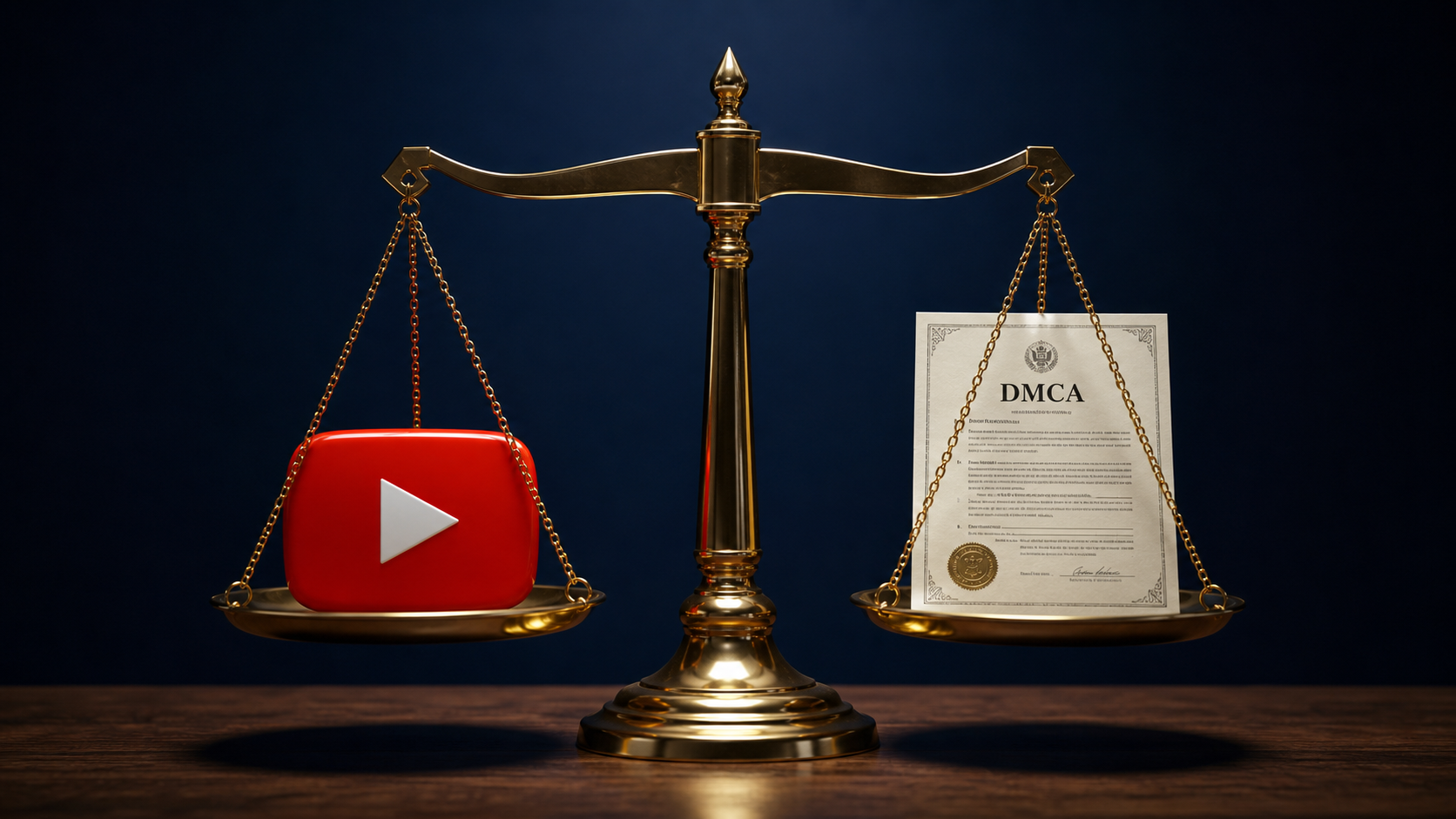

  • Is It Legal to Download YouTube Videos? 2026 DMCA Explained: Tips

    Is It Legal to Download YouTube Videos? 2026 DMCA Explained: Tips

    Is It Legal to Download YouTube Videos? 2026 DMCA Explained: Tips

    Is It Legal to Download YouTube Videos? 2026 DMCA Explained: Tips: There are a small number of genuinely authorized download paths: YouTube Premium offline downloads YouTube Premium (currently $13.99/month in the US) is the only fully authorized method. Videos download as encrypted cache files inside the YouTube app. Is It Legal to Download YouTube Videos? DMCA Explained 20…

    Affiliate disclosure: This article contains affiliate links. If you purchase through them, we may earn a commission at no extra cost to you. We only recommend tools we have independently reviewed. Is It Legal to Download YouTube Videos? 2026 DMCA Explained


    A court ruling in January 2026 just made this question more complicated than it was a year ago. The short answer: downloading YouTube videos without authorization sits in a legal grey zone in the US, but a California federal court has now opened a clear path for copyright holders to sue downloaders under DMCA section 1201, separately from standard copyright claims. This guide breaks down exactly what changed, what it means for personal use, and which tools carry the lowest risk. yt-dlp vs youtube-dl 2026: Which Video Downloader Should…


    What the 2026 Court Ruling Actually Said

    Laptop screen showing YouTube video download interface with legal warning overlay

    The ruling in Cordova v. Huneault (N.D. Cal., 5:25-cv-04685) is the key development here. US Magistrate Judge Virginia K. DeMarchi denied a motion to dismiss on January 23, 2026, finding that YouTube’s “rolling cipher” technology qualifies as an access-control measure under DMCA section 1201(a). Is It Legal to Download YouTube Videos? 2026 DMCA Guide

    The case involves a creator named Cordova, whose video clips were used by a reaction channel that obtained the source files through stream-ripping tools. The defendants argued the videos were publicly viewable, so no “circumvention” occurred. The court rejected that argument. Its reasoning was direct: “Whether the videos may be viewed by the public is immaterial; the complaint refers to technological measures intended to prevent unauthorized downloading.”

    This matters for anyone downloading YouTube videos because:

    • YouTube’s rolling cipher is now confirmed by a US court as a valid “technological protection measure” under DMCA section 1201.
    • Bypassing it, using any third-party downloader, could expose you to civil liability separate from copyright infringement.
    • Civil damages under section 1201 range from $200 to $2,500 per act of circumvention (17 U.S.C. § 1201), and that ceiling rises to $150,000 per act for willful violations.

    This is not yet a Supreme Court ruling or settled law. The case is still in early litigation. But the court allowed the claim to proceed, which is the significant step. You can read the full analysis on TorrentFreak and Eric Goldman’s Technology & Marketing Law Blog.


    YouTube’s Terms of Service: A Separate Problem

    Even before the 2026 ruling, downloading YouTube videos without permission violates YouTube’s Terms of Service. Section 5 of the YouTube Terms of Service prohibits accessing content “through any technology or means other than the video playback pages of the Service itself, the embeddable player, or other explicitly authorized means YouTube may designate.”

    Breaking ToS is not the same as breaking the law. YouTube could terminate your account or block your IP, but a ToS violation alone does not make you criminally liable. The 2026 DMCA ruling adds a layer because it potentially gives copyright holders a legal claim above and beyond account termination.

    Here is the practical distinction:

    Risk type Who acts Consequence
    ToS violation YouTube (Google) Account ban, IP block
    Copyright infringement Copyright holder Civil lawsuit, damages
    DMCA section 1201 circumvention Copyright holder Separate civil suit, $200-$2,500+ per act

    For most personal viewers, the realistic risk is account termination, not a lawsuit. Rights holders target commercial actors, stream-ripping services, and re-uploaders, not individual users downloading one video for offline use. That said, the Cordova ruling gives creators a new legal tool, and the risk profile has shifted.


    Does Fair Use Protect You?

    Copyright law document with gavel and digital video icons on desk

    Fair use is often cited as a defence for downloading YouTube videos, particularly for commentary, education, or personal use. The US Copyright Office evaluates fair use on four factors: purpose and character of use, nature of the copyrighted work, amount used, and market effect.

    The problem is that fair use does not clearly apply to DMCA section 1201 claims. The Cordova court confirmed this tension: you can have a fair use argument for the content itself but still face liability for the act of bypassing the technical protection measure. These are two separate legal questions.

    Personal use also does not have an explicit “private copying” exemption in US law, unlike in some European jurisdictions. Courts have never ruled that downloading a YouTube video for personal offline viewing constitutes fair use. The Copyright Office’s position is that fair use is determined case by case, not by category.

    Bottom line: fair use is a defence you raise in court after you are sued, not a pre-emptive legal shield. For day-to-day downloading decisions, do not treat it as certain protection.


    There are a small number of genuinely authorized download paths:

    1. YouTube Premium offline downloads
    YouTube Premium (currently $13.99/month in the US) is the only fully authorized method. Videos download as encrypted cache files inside the YouTube app. You cannot move them to a USB drive or edit them, and they expire if you go 30 days without an internet connection. This is the route with zero legal risk. (source: NIST cybersecurity guidelines)

    2. Videos with Creative Commons licences
    Some YouTube creators publish under a Creative Commons CC BY licence. These videos can be downloaded and reused within the terms of that licence. You can filter for them in YouTube’s advanced search. Always check the actual licence on the video page. (source: peer-reviewed tech research)

    3. Videos where the uploader grants explicit permission
    Some creators publish their own download links or explicitly state in the video description that downloading is permitted. Written permission from the rights holder resolves the copyright question, though it does not remove the YouTube ToS barrier.

    4. Your own content
    Downloading a video you uploaded yourself is clearly legal. Use YouTube Studio’s download function for this.

    Everything outside these four paths carries some legal exposure under the 2026 DMCA picture.


    YouTube Download Legality by Country: Key Differences

    4K Video Downloader Plus software interface showing download queue

    US law is the most discussed, but the rules vary significantly by jurisdiction.

    United States: Civil grey zone. Third-party downloading violates YouTube’s ToS and, post-January 2026, risks DMCA section 1201 claims. No criminal liability for personal use has been established. Rights holders can sue in civil court.

    European Union: The EU Copyright Directive (2019/790) and national implementations generally allow private copying for personal use, as long as you have legitimate access to the source. However, bypassing a technical protection measure may still be prohibited under Article 6 of the EU Copyright Directive, which is similar to DMCA section 1201.

    United Kingdom: The UK’s Copyright, Designs and Patents Act 1988 was amended in 2014 to allow personal copies for private use. But a UK court struck down those regulations later that year. The legal position in the UK for YouTube downloads is therefore unclear, and downloading without permission remains technically infringing.

    Canada: Canadian copyright law includes a private copying exception (Section 80), but it was designed for audio recordings and its application to video is not settled. The YouTube Terms of Service prohibition still applies as a contractual matter.

    If you are outside the US, check your local law before relying on any general guide, including this one.


    The Real-World Risk Assessment

    Understanding the law is useful. Understanding the actual enforcement pattern is more useful for most readers.

    YouTube and copyright holders consistently focus enforcement actions on:

    • Commercial stream-ripping services (youtube-dl, yt-dlp forks used at scale)
    • Sites offering bulk download as a service
    • Users who re-upload downloaded content
    • Channels using downloaded clips for commercial reaction or commentary videos (exactly the scenario in Cordova)

    Individual users downloading a single video for offline personal viewing have not been the target of documented enforcement actions. The RIAA and major studios pursue commercial actors.

    However, the Cordova ruling changes the calculus slightly for content creators who download clips for commentary or reaction videos. If you run a channel that uses downloaded source files, the new DMCA section 1201 argument is a real legal risk you should discuss with a copyright attorney.


    If you decide to use a third-party downloader, the tool you choose affects both your risk profile and your experience. The safest and most reliable options avoid malware, excessive ads, and data collection.

    Best Pick: 4K Video Downloader Plus

    4K Video Downloader Plus is the tool that consistently ranks at the top for safety, reliability, and feature set. It downloads YouTube videos, playlists, channels, and subtitles in up to 8K resolution. Smart Mode lets you set preferred quality and format once, and every subsequent download uses those settings automatically.

    Key features in 2026:
    – MP4, MKV, and audio-only MP3/M4A output
    – Subtitle download in 50+ languages (SRT format)
    – Playlist and full channel download in one operation
    – AI audio tools: vocal isolation, noise removal, echo reduction
    – Available for Windows, macOS, and Linux

    Pricing: Lite plan at $15/year; Personal plan at $25 one-time (3 devices); Pro plan at $45 one-time (commercial use). The original 4K Video Downloader (discontinued February 1, 2026) did not automatically migrate to Plus, so existing licence holders should verify their status.

    The application does not inject ads, does not bundle third-party software, and has a clean privacy record. For the use cases in this article, it is the option that minimizes technical risk while remaining compliant with your own responsibility for how you use the output.

    Download 4K Video Downloader Plus

    Pros: Clean install, reliable updates, supports 8K and playlists, available on all desktop platforms.
    Cons: Free version limits you to 30 downloads per day. The original lifetime licence does not carry over to Plus.

    Alternative: ClipGrab

    ClipGrab is a free, open-source option for Windows, macOS, and Linux. It handles YouTube, Vimeo, and Dailymotion. The interface is straightforward: paste a URL, choose format and quality, download. It does not support 4K or playlist batch downloads, which limits it for power users. For occasional single-video downloads, it works without a purchase.

    Alternative: WinX DVD Ripper

    WinX DVD Ripper is primarily a DVD ripping tool, but the Platinum edition includes online video download support. If your use case combines archiving physical media with downloading web video, it covers both. For YouTube-only users, 4K Video Downloader Plus is the more focused choice.


    FAQ: YouTube Download Legality 2026

    Is downloading YouTube videos illegal in 2026?
    Not straightforwardly criminal for personal use in the US, but a January 2026 court ruling (Cordova v. Huneault) confirmed that YouTube’s rolling cipher qualifies as a protected technical measure under DMCA section 1201. This means downloading via third-party tools can expose you to civil claims separate from standard copyright infringement. The realistic enforcement risk for individual personal-use downloaders remains low, but the legal exposure has increased.

    Can I get sued for downloading a YouTube video?
    In theory, yes. DMCA section 1201 allows copyright holders to sue for civil damages between $200 and $2,500 per circumvention act, rising to $150,000 for willful violations. In practice, enforcement targets commercial actors and re-uploaders, not individual personal-use downloaders. The Cordova case is a civil dispute between two creators, not a platform or government action against casual users.

    Does YouTube Premium make downloads fully legal?
    Yes, for personal offline viewing within the app. YouTube Premium is the only download method explicitly authorized by Google. The files are DRM-encrypted and expire if you go 30 days without internet access. You cannot export them or edit them outside the YouTube app.

    Is fair use a valid defence for downloading YouTube videos?
    Fair use may apply to the underlying copyright claim, but the 2026 ruling shows it does not cover DMCA section 1201 circumvention as a separate issue. Courts assess fair use on a case-by-case basis. Do not treat it as pre-emptive protection.

    Which YouTube downloader is safest to use?
    Safety means two things here: legal risk and malware risk. On the legal side, all third-party downloaders carry the same DMCA exposure described above. On the malware side, 4K Video Downloader Plus has a clean record, does not bundle adware, and is actively maintained with regular updates. Avoid browser-extension downloaders from unknown publishers, especially those listed on Chrome Web Store (Google blocks most of them anyway).


    Verdict: What You Should Actually Do

    Here is the practical summary, without legal advice:

    1. For authorized, zero-risk offline viewing: Use YouTube Premium. It is the only method Google explicitly permits.
    2. For personal archiving of your own content or CC-licensed content: Use 4K Video Downloader Plus. It is the cleanest, most reliable desktop tool, and it keeps pace with YouTube’s rolling cipher changes.
    3. For occasional free downloads: ClipGrab is a functional free alternative for single videos up to 1080p.
    4. If you run a reaction or commentary channel: Get specific legal advice before using downloaded source files. The Cordova ruling created a new risk vector that fair use does not automatically resolve.

    The DMCA picture in 2026 is more complex than it was in 2024, but enforcement against individual personal users remains rare. The risk profile has shifted most sharply for creators who download clips from other creators for commercial use on their own channels.


    Sources


    Editorial note: The Best Video Downloader editorial team reviews this guide against the article’s checks, comparisons, and examples before updates are published.


  • How to Download Twitch Clips in 2026: The Ultimate Guide

    How to Download Twitch Clips in 2026: The Ultimate Guide

    Affiliate disclosure: This article contains affiliate links. If you purchase through them, we may earn a commission at no extra cost to you. We only recommend tools we have independently reviewed. Twitch Video Downloader MP4 Free 2026: Best Tools to Save…

    How to download Twitch clips 2026

    How to Download Twitch Clips in 2026: The Ultimate Guide

    How to Download Twitch Clips in 2026: The Ultimate Guide: There is no official Twitch mobile download option. On mobile, browser-based tools are the practical path. Best 4K Video Downloader Software Free 2026: Tools That K…

    You want to save a Twitch clip before it disappears, or keep a VOD before the 14-to-60-day expiration window closes. This guide covers every working method in 2026: the official Twitch download (for your own clips), browser-based tools, and desktop apps. Best YouTube Downloaders 2026: 8 Free and Safe Tools Test…

    Bottom line upfront: For single clips, a free online tool like Clipsey or Untwitch gets the job done in under a minute. For batch downloads, VOD archiving, or anything above 1080p, 4K Video Downloader Plus is the most reliable desktop option tested in 2026. Best TikTok Downloader No Watermark 2026: 7 Tested Tools…


    What You Need to Know About Twitch Clips and VODs in 2026

    Before picking a tool, understand what you are actually trying to download.

    Clips are short highlight reels (up to 60 seconds) created from a stream. According to Twitch’s official help page, clips are stored indefinitely unless the streamer deletes them or Twitch removes them for policy reasons. Clips are not going away on their own.

    Past Broadcasts (VODs) are full recordings of streams. These expire:

    Account type VOD retention window
    Standard streamers 7 days
    Affiliates 14 days
    Partners and Prime 60 days

    Note: Twitch added a 100-hour storage limit for Highlights and Uploads in April 2025. This does NOT affect Past Broadcasts or Clips (source: AlternativeTo).

    If you are trying to save a friend’s VOD, move fast. If you are saving your own clips for a highlights reel, you have more time.


    Method 1: The Official Twitch Download (Your Own Clips Only)

    This method works only if you are the channel owner or clip creator. No third-party tool needed.

    1. Log in to your Twitch account.
    2. Click your profile avatar (top right corner).
    3. Select Video Producer from the dropdown.
    4. Navigate to the Clips tab.
    5. Find the clip you want to save. Click the three-dot menu icon to the right of it.
    6. Select Download.

    Twitch exports the clip as an MP4 file directly to your browser’s default download folder.

    Limitation: This only works for your own channel’s clips. You cannot use this method to download clips from other channels you did not create.


    Twitch clip download comparison guide 2026

    Method 2: Browser-Based Clip Downloaders (Free, No Install)

    For clips from any public channel, paste the URL into one of these tools. They work without registration or software installation.

    How to find a Twitch clip URL

    Open the clip on Twitch. The URL looks like this:

    https://www.twitch.tv/channelname/clip/ClipIDHere
    

    Copy the full URL from your browser address bar.

    Untwitch.com handles both clips and VODs. Paste the URL, choose your quality (source quality is the highest available), and download. No ads were present in testing (June 2026).

    StreamsCharts Clip Downloader is built into the StreamsCharts analytics platform. It supports clips specifically and is clean to use.

    Clipsey focuses on clips. The interface is a single input field. Paste URL, select resolution, download.

    Step-by-step (applies to all three tools)

    1. Open the Twitch clip you want to save.
    2. Copy the URL from the address bar.
    3. Go to the tool’s site.
    4. Paste the URL into the input field.
    5. Select your preferred quality (Source = original quality, usually 1080p or 720p60).
    6. Click Download. The MP4 file saves to your downloads folder.

    Limitation: These tools do not support batch downloads. If you need to archive 20 clips at once, a desktop app is the faster path.


    Method 3: Download Twitch VODs Before They Expire

    VODs require slightly more care because of the expiration window. The same browser tools above (Untwitch, in particular) handle VODs, but the process is the same: paste the VOD URL, choose quality, download. (source: NIST cybersecurity guidelines)

    Finding the VOD URL

    Go to the channel’s page and click Videos in the left sidebar. Click the VOD you want. The URL changes to: (source: peer-reviewed tech research)

    https://www.twitch.tv/videos/1234567890
    

    Copy that URL and paste it into your chosen tool.

    Quality options for VODs

    Most tools offer:

    • Source (original broadcast quality, often 1080p60)
    • 720p60
    • 480p
    • 360p

    Always choose Source unless you are limited on storage or bandwidth.

    Note on 2K VODs: Twitch’s policy states the 2K quality version of a VOD expires after just 7 days, even for Partners. After that, only 1080p is available. If you need a 2K recording, download it within the first week.


    Download Twitch clips with desktop apps

    Method 4: Desktop Apps for Batch Downloads and Advanced Control

    If you are archiving a streamer’s full clip library, or you need to download VODs regularly, a desktop app gives you more control than a browser tool.

    Best Pick: 4K Video Downloader Plus

    4K Video Downloader Plus is the most established desktop downloader in this category. The current “Plus” version replaced the original 4K Video Downloader in early 2026.

    What it does for Twitch:

    • Downloads finished Twitch broadcasts (VODs and clips) in MP4 and MKV formats
    • Supports resolutions up to 4K and 8K where available
    • Includes an in-app browser so you can navigate to Twitch and trigger downloads without leaving the application
    • Extracts audio as MP3, M4A, or OGG if you only need the audio track
    • Handles batch downloads from a queue

    Pros:
    – Works across Windows, Mac, and Linux
    – Clean interface with no bundled adware
    – Supports 50+ platforms beyond Twitch (YouTube, TikTok, Vimeo, Facebook, etc.)
    – Audio AI tools added in 2026: vocal removal, speech isolation, echo reduction

    Cons:
    – The free tier limits you to 30 videos per day and 1080p quality
    – Live streams cannot be downloaded (only finished broadcasts)
    – Paid license required for unlimited downloads and 4K/8K quality

    Verdict: If Twitch is one of several platforms you regularly archive from, 4K Video Downloader Plus pays for itself quickly. For Twitch-only occasional use, start with the free tier and upgrade if you hit the 30-video limit.

    Download 4K Video Downloader Plus


    Alternative Desktop Tools

    ClipGrab (ClipGrab.de) is a free, open-source desktop downloader. It handles YouTube, Twitch, and Vimeo. No registration required and no paid tier. The interface is simpler than 4K Video Downloader Plus with fewer format options, but it covers most use cases for casual downloads.

    Twitch Leecher is a free, Twitch-specific desktop app available on GitHub. It searches by channel name and lets you download full VOD libraries by date range. Best option if you want to archive everything from a specific streamer. Verify the GitHub repo is actively maintained before relying on it for critical archiving.


    Method 5: How to Save Twitch Clips to MP4 on Mobile

    There is no official Twitch mobile download option. On mobile, browser-based tools are the practical path.

    1. Open the Twitch app and navigate to the clip.
    2. Tap the Share icon and copy the clip link.
    3. Open a mobile browser (Safari or Chrome).
    4. Go to Clipsey or Untwitch.
    5. Paste the clip URL and tap Download.
    6. On iOS: use the Files app or the share sheet to save. On Android: the MP4 saves directly to your Downloads folder.

    Note: Some mobile browsers block direct MP4 downloads. If the download does not start, try switching from Chrome to Firefox on Android, or use Safari on iOS.


    Comparing Your Options: Quick Reference Table

    Method Cost Batch support Best for
    Official Twitch download Free No Your own clips only
    Untwitch / Clipsey / StreamsCharts Free No Single clips or VODs
    4K Video Downloader Plus Free tier / Paid Yes Multi-platform archiving
    ClipGrab Free Limited Simple desktop download
    Twitch Leecher Free Yes (by channel) Full VOD library archiving
    Mobile browser tools Free No On-the-go single clips

    Downloading clips for personal offline viewing sits in a grey area under Twitch’s Terms of Service. Twitch prohibits scraping or systematic downloading of content without permission, but does not explicitly prohibit personal archiving of publicly available clips.

    The practical risk is low for personal use. The bigger concern is re-uploading clips you did not create to YouTube or other platforms without the streamer’s consent. That can trigger DMCA takedowns from the streamer or the original music rights holders if the stream contained licensed music.

    Safe practices:
    – Download for personal viewing only.
    – Do not monetize content you do not own.
    – Check with the streamer if you plan to use their clips in your own content.

    For a detailed breakdown of the legal framework around downloading streaming content, see our guide: How to Download Streaming Videos Legally in 2026.


    Troubleshooting: Common Problems and Fixes

    “The clip URL is not recognized”
    Make sure the URL includes the full path with the clip ID. Short-form Twitch share URLs sometimes miss the clip ID. Open the clip in a browser tab first and copy from the address bar.

    “Quality options are grayed out or only 480p is available”
    The source quality of some older clips is 480p or 720p. Twitch does not upscale. If Source is 720p, that is the maximum available.

    “Download starts but file is corrupted”
    This usually means the download was interrupted. Try again on a stable connection. For long VODs (2+ hours), desktop apps like 4K Video Downloader Plus or Twitch Leecher handle interrupted downloads better than browser tools.

    “The VOD link returns a 404 error”
    The VOD has expired or the streamer deleted it. Once a VOD is gone, no tool can retrieve it. This is why archiving before expiration matters.

    “Tool is showing ads or redirects to suspicious sites”
    Avoid tools that open pop-up windows, ask for email sign-up, or redirect to unrelated pages before showing a download link. The tools listed in this guide (Untwitch, Clipsey, StreamsCharts, 4K Video Downloader Plus, ClipGrab) do not use these patterns as of our last review.


    How to Choose the Right Method for Your Situation

    Not every Twitch downloader fits every use case. Here is how to decide quickly.

    You created the clip yourself: Use the official Twitch Video Producer download. Free, no third-party tool needed, no quality loss.

    You want one clip from someone else’s channel: Use Untwitch or Clipsey. Paste URL, click download, done in 60 seconds.

    You want to save a VOD before it expires: Use Untwitch for a single VOD. If the VOD is longer than 2 hours, a desktop app like 4K Video Downloader Plus handles it with more stability.

    You are archiving multiple clips or VODs from one channel: 4K Video Downloader Plus (batch queue) or Twitch Leecher (channel-specific library). Both handle large volumes without you having to paste URLs one by one.

    You only have a phone with you: Mobile browser + Clipsey or Untwitch. Expect slightly slower performance, and use Firefox on Android for the most reliable direct download behavior.

    You want audio only (podcast clips, music from a stream): 4K Video Downloader Plus extracts MP3 directly. ClipGrab also supports audio-only output. Online tools generally do not offer audio extraction for Twitch.


    FAQ

    Can I download Twitch clips without an account?

    Yes. All the browser-based tools listed here (Untwitch, Clipsey, StreamsCharts) work without a Twitch account or any registration. You only need an account to use the official Twitch Video Producer download feature.

    How long does it take to download a Twitch clip?

    For a 60-second clip at 1080p, download time is typically under 30 seconds on a standard broadband connection. The clip file size is usually between 20MB and 80MB depending on quality.

    Can I download Twitch VODs after they expire?

    No. Once Twitch deletes a VOD after its retention window, the file is gone. No tool can retrieve expired VODs. Archive before the deadline.

    Does 4K Video Downloader Plus support Twitch live streams?

    No. 4K Video Downloader Plus downloads finished broadcasts only. Live streams cannot be captured with this tool. For live stream recording, use OBS Studio (free, open-source) to record the stream in real time.

    What format do downloaded Twitch clips save in?

    Most browser tools save clips as MP4, which is the standard Twitch format. Desktop apps like 4K Video Downloader Plus offer MP4 and MKV. MP4 is the most compatible option for editing software and media players.


    Editorial note: The Best Video Downloader editorial team reviews this guide against the article’s checks, comparisons, and examples before updates are published.


  • 4K Video Downloader 2026 Review: The Truth About This Popular App

    4K Video Downloader 2026 Review: The Truth About This Popular App

    Disclosure: This article contains affiliate links. If you buy through them, we may earn a commission at no extra cost to you. yt-dlp vs youtube-dl 2026: Which Video Downloader Should…

    4K Video Downloader 2026 Review: The Truth About This Popular App

    4K Video Downloader Plus is one of the most recognized desktop video downloaders available today. But the original product was discontinued in February 2026, and the “Plus” version that replaced it works differently from what longtime users remember. This review covers what changed, what it costs, what it does well, and where it falls short. Is It Legal to Download YouTube Videos? 2026 DMCA Truth G…


    What Is 4K Video Downloader Plus?

    4K Video Downloader Plus is the actively maintained successor to the original 4K Video Downloader, which 4K Download officially retired on February 1, 2026. The Plus version runs on a newer codebase and introduces a freemium model: a limited free tier and paid plans for power users. Best Guide: Is Downloading YouTube Videos Legal? DMCA 202…

    The core function is the same. You paste a URL from YouTube, Vimeo, SoundCloud, Facebook, or dozens of other platforms, pick your format and quality, and the app downloads the file to your desktop. It works on Windows, macOS, and Linux. How to Download YouTube Videos Legally in 2026 Using 4 Sa…

    What changed: the free version now has daily download limits and shows ads. The paid tier removes those limits and adds features like a built-in browser for accessing login-required or private content.


    4K Video Downloader Plus vs Free Version: Key Differences

    The free tier is not the same product that made 4K Video Downloader popular. Here is what each plan actually gives you.

    Feature Free Personal (Lifetime) Family (Lifetime)
    Downloads per day 10 Unlimited Unlimited
    Simultaneous downloads 2 7 7
    Ads in app Yes No No
    Built-in browser No Yes Yes
    Private/login content No Yes Yes
    Price $0 ~$25 one-time ~$45 one-time
    Computers 1 3 6

    The 10-download daily cap is the most significant restriction. If you download individual videos occasionally, free may work. For playlists, channels, or batch work, the free version will block you partway through.

    The built-in browser in the paid version lets you log into YouTube and download private, members-only, or age-restricted videos. That feature alone is the main reason to pay if you work with non-public content.


    How to Use 4K Video Downloader

    Getting started takes under two minutes. Here are the steps for a standard YouTube download.

    Step 1: Download and install the app from 4kdownload.com. The installer is clean. VirusTotal consistently reports 0 detections on the official download.

    Step 2: Open the app and click “Paste Link” in the top left. The app reads your clipboard automatically if a URL is already copied.

    Step 3: Wait for the metadata to load. A dialog appears showing available quality options: 720p, 1080p, 4K, 8K (where the source platform allows it), plus audio-only formats like MP3 and M4A.

    Step 4: Select your format and quality, choose a save location, and click “Download.”

    For playlists, paste the playlist URL instead of a single video URL. The app detects it and asks if you want to download the full playlist or a selection.

    Subtitles: You can download subtitles separately or embed them. Select the subtitle language in the dialog before starting. (source: NIST cybersecurity guidelines)

    Smart Mode: Under Preferences, enable Smart Mode to skip the quality dialog and always download with your saved settings. Useful for batch work. (source: peer-reviewed tech research)


    Platforms and Format Support

    4K Video Downloader Plus supports more than 1,000 platforms according to the developer. In practice, the platforms that work reliably include:

    • YouTube (including Shorts and playlists)
    • Vimeo
    • Facebook
    • SoundCloud (audio)
    • TikTok
    • Dailymotion
    • Twitch VODs

    Instagram and Twitter/X support has been inconsistent in 2026 due to those platforms’ API changes. If those are your primary targets, check a dedicated tool first. See our guide on the best YouTube video downloader in 2026 for a broader comparison.

    Output formats: MP4, MKV, M4A, MP3, OGG, WEBM. No built-in converter, so what you see in the quality dialog is what you get. If you need a specific format that is not offered, you will need a separate conversion step.


    Is 4K Video Downloader Safe to Use?

    Yes, the official download from 4kdownload.com is safe. The installer has a verified digital signature and consistently scores 0/70 on VirusTotal virus detection tests. The company has been operating since 2010 and has a public, verifiable track record.

    Two safety notes to keep in mind:

    Download only from the official site. Third-party mirrors of 4K Video Downloader installers have been found bundled with adware and PUPs (potentially unwanted programs). The official address is 4kdownload.com. Do not use installer files from file-sharing sites.

    The “lifetime license” history. Users who purchased a “lifetime” license for the original 4K Video Downloader before 2026 found that license did not transfer to the Plus version when the original was discontinued. If you buy the current Plus lifetime license, you are getting a license for this product as it exists now. Factor that in when comparing to subscription alternatives.


    Performance: What Works and What Does Not

    What works well:

    • Playlist and channel downloads are reliable. The app handles large playlists without crashing.
    • 4K and 8K quality selection is accurate when the source video is actually encoded at that resolution.
    • Speed is good. Downloads use your full connection speed rather than throttling.
    • The interface is clean and does not bury the core feature.
    • Subtitle downloading works correctly, including auto-generated captions.

    What does not work well:

    • The 10-download daily cap on the free version hits fast if you are doing any batch work.
    • Instagram and Twitter/X downloads fail more often than they succeed in the current version.
    • No built-in format converter. You need a second app if you want to convert MKV to MP4.
    • The free version shows ads inside the app, which is a recent change that frustrated longtime users.
    • No browser extension. You have to copy-paste URLs manually every time.

    Pricing: Is the Paid Version Worth It?

    The current pricing for 4K Video Downloader Plus is approximately $25 for a Personal lifetime license covering up to 3 computers, or $45 for a Family license covering 6 computers. There is also a 7-day free trial of the paid tier with no credit card required.

    That lifetime price is reasonable if you download video content regularly. The math works out: at $25 one-time versus $7.99/month for SnapDownloader, you break even in about 3 months. For a tool you use weekly or more, the lifetime license pays for itself quickly.

    If you download video only a few times per month and can stay under the 10-video daily limit, the free tier handles it without paying anything.


    Best Pick: Our Recommendation

    4K Video Downloader Plus is the top pick for most users who want a reliable desktop video downloader in 2026. It has the most consistent YouTube performance among paid tools, the interface is straightforward enough for non-technical users, and the one-time lifetime price makes it cheaper long-term than subscription alternatives.

    The 7-day trial means you can test it with your specific use case before committing. No credit card required.

    Get 4K Video Downloader Plus (7-day free trial)

    Who should not buy it: If you primarily download from Instagram or Twitter/X, the current version is unreliable for those platforms. If you need format conversion built in, add a separate tool or look at VideoProc. If your budget is zero and 10 downloads per day is enough, the free tier covers basic use.


    4K Video Downloader Alternatives

    Three alternatives worth considering depending on your situation:

    SnapDownloader is the strongest paid alternative. It completed 244 of 247 download attempts across a 90-day test period reported by setapp.com, an industry-standard reliability metric. It costs $39.99 for a lifetime license or $7.99/month. It also supports 1,000+ sites and handles Instagram better than 4K Video Downloader currently does.

    yt-dlp is the best free option for users comfortable with a command line. It is open-source, audited by the community, and handles almost every platform. The main barrier is the command-line interface, which is not practical for non-technical users. See our full 4K Video Downloader alternatives guide for setup instructions and a full comparison.

    ClipGrab is another free option, but it comes with a caution. Multiple antivirus programs now flag ClipGrab installers as PUPs (potentially unwanted programs) due to bundled software in the installer. If you use ClipGrab, download only from the official site at clipgrab.de and read the installer steps carefully to decline bundled add-ons.

    For more options in this category, our guide to the best YouTube video downloader in 2026 covers 7 tools tested across speed, reliability, and format support.


    Downloading YouTube videos for personal offline use sits in a legal grey area. YouTube’s Terms of Service prohibit downloading without explicit permission. However, a US federal court ruling in February 2026 confirmed that bypassing technical protection measures for personal, non-commercial use does not automatically constitute a DMCA violation.

    The practical position: downloading a video you have the right to watch, for your own offline use, is low legal risk. Distributing downloaded content, monetizing it, or circumventing paywall restrictions is a different matter.

    For a full breakdown of the current legal position, see our guide on how to download YouTube videos legally.


    FAQ

    Is 4K Video Downloader free?

    Yes, there is a free version with limits. The free tier allows 10 downloads per day, 2 simultaneous downloads, and includes ads. The paid version removes all limits and adds features like private content access. The paid Personal lifetime license costs approximately $25.

    Is 4K Video Downloader Plus safe?

    Yes, when downloaded from the official site at 4kdownload.com. The installer has a verified digital signature and scores 0/70 on VirusTotal. Do not download from third-party mirrors, which have been found bundled with unwanted software.

    What happened to the original 4K Video Downloader?

    The original 4K Video Downloader was discontinued on February 1, 2026. Users who had the original product need to install 4K Video Downloader Plus, which is the active replacement. Previous “lifetime” licenses for the original product did not transfer to the Plus version.

    Can 4K Video Downloader download private YouTube videos?

    Yes, but only on the paid version. The Plus paid tier includes a built-in browser that lets you log into YouTube and access private, members-only, or age-restricted content.

    What is the best free alternative to 4K Video Downloader?

    yt-dlp is the most capable free alternative, but it requires command-line use. For a graphical free option with no daily limits, the free version of 4K Video Downloader itself covers basic use. ClipGrab is another option, but check installer bundling warnings before using it.


    Verdict

    4K Video Downloader Plus is the right tool for most people who want a desktop video downloader that does not require technical setup. The paid lifetime license at ~$25 is the better value over time compared to monthly subscriptions, and the 7-day no-credit-card trial removes the risk of buying without testing.

    The main caveats: the free version is now meaningfully limited versus what it used to be, and Instagram/Twitter support is patchy in 2026. If those platforms are central to your workflow, test with the free trial before paying.

    Start your 7-day free trial of 4K Video Downloader Plus


  • Best Guide: Is Downloading YouTube Videos Legal? DMCA 2026 Truth

    Best Guide: Is Downloading YouTube Videos Legal? DMCA 2026 Truth


    is it legal to download YouTube videos 2026, featured image

    Best Guide: Is Downloading YouTube Videos Legal? DMCA 2026 Truth

    Best Guide: Is Downloading YouTube Videos Legal? DMCA 2026 Truth: The short answer: downloading YouTube videos is still a civil grey zone in the US, not a crime, but the legal theory just got sharper. In January 2026, Magistrate Judge Virginia K. Is It Legal to Download YouTube Videos? 2026 DMCA Truth G…

    A US court just changed the rules. In January 2026, a federal magistrate judge ruled that bypassing YouTube’s download protection can violate the DMCA, even for publicly viewable videos. That ruling landed without much press coverage, and most guides online still give outdated answers. How to Download YouTube Videos Legally in 2026 Using 4 Sa…

    This guide covers exactly what the ruling says, what it means for ordinary viewers, and which download methods carry the lowest legal risk in the US as of June 2026. yt-dlp vs youtube-dl 2026: Which Video Downloader Should…


    legal vs illegal YouTube video download methods

    DMCA rules for YouTube downloads 2026

    The short answer: downloading YouTube videos is still a civil grey zone in the US, not a crime, but the legal theory just got sharper. Cobalt.tools Review 2026: Still the Best Video Downloader?

    In January 2026, Magistrate Judge Virginia K. DeMarchi (N.D. Cal.) denied a motion to dismiss in Cordova v. Huneault (case no. 5:25-cv-04685). The judge found that YouTube’s “rolling-cipher technology” qualifies as a technological protection measure under DMCA section 1201(a). Crucially, she wrote that public viewability of a video is “immaterial.” The fact that you can watch something for free does not mean you can bypass the technical layer that controls downloading.

    What that means for you:

    • The act of circumventing YouTube’s download protection is now a plausible civil DMCA claim, separate from copyright infringement.
    • You do not need to redistribute or monetize a video to potentially face liability. The circumvention itself is the issue.
    • In practice, no company or individual has sued an ordinary personal-use downloader over this theory. But it is no longer just a platform policy violation.

    Source: TorrentFreak: Ripping Clips for YouTube Reaction Videos Can Violate the DMCA


    What YouTube’s Terms of Service Actually Say About Downloading

    YouTube’s Terms of Service are clear and have not softened. Section 5 states that users may not download content “unless YouTube explicitly authorizes it (e.g., a download button or link) or you have YouTube Premium.”

    Beyond the terms themselves, the platform uses technical measures, including the rolling cipher identified in the 2026 ruling, specifically to block unauthorized downloads.

    Consequences YouTube can impose under its ToS:

    • Immediate account termination
    • IP blocking
    • Referral to rights holders (who can then pursue civil claims)

    The ToS consequences and the DMCA claim are separate tracks. A ToS violation gets your account deleted. A DMCA circumvention claim, in theory, exposes you to statutory damages of $200 to $2,500 per act under 17 U.S.C. § 1201(c).

    Source: YouTube Terms of Service


    Use this table to judge any specific scenario quickly.

    Scenario Method Legal Status (US, June 2026)
    Save video via YouTube Premium offline YouTube’s official app Fully legal
    Download your own uploaded video YouTube Studio download button Fully legal
    Download Creative Commons-licensed video Any downloader Legal (check license terms)
    Download a public-domain video Any downloader Legal
    Download a copyrighted video for personal offline viewing Third-party tool Gray area: ToS violation + potential DMCA civil risk post-2026 ruling
    Download clips for commentary or reaction videos Third-party tool Higher risk: direct target of Cordova v. Huneault
    Download and redistribute or monetize Any tool Illegal: copyright infringement
    Download behind a paywall (paid courses, memberships) Any bypassing tool Illegal

    How to Legally Download YouTube Videos in 2026

    Three methods are fully defensible under US law.

    YouTube Premium Offline Viewing

    YouTube Premium ($13.99/month in the US as of June 2026) lets you save videos inside the official YouTube app. Videos are encrypted and tied to your account. You cannot extract the file or play it outside the YouTube app, but you can watch offline without a connection for up to 30 days.

    Best for: Commuters, travelers, people with limited data plans.

    Limitation: Files are DRM-locked. You cannot move them to another device or player.

    Download Your Own Uploaded Videos

    If you created the content, you own the copyright and can download your own videos through YouTube Studio. Go to Content, select the video, click the three-dot menu, and choose Download. (source: NIST cybersecurity guidelines)

    Download Creative Commons and Public Domain Videos

    Many educational videos, lectures, and government-produced content on YouTube carry Creative Commons licenses. The YouTube filter for Creative Commons content (under Filters, then Features) surfaces these videos. A CC BY license, for example, allows downloading and reuse with attribution. (source: peer-reviewed tech research)

    For public domain video content, the Internet Archive hosts thousands of films, newsreels, and documentaries you can download freely.


    The Gray Area: Third-Party Downloaders and Personal Use

    Most people asking this question are not content creators ripping footage for reaction videos. They want to save a cooking tutorial or a conference talk for offline use. That is where the gray area lives.

    The practical risk for personal-use downloaders is very low but no longer theoretical. No lawsuit against a private individual for personal-use downloading has been reported in the US under the DMCA’s anti-circumvention theory. The case law that exists involves commercial actors or creators who redistributed content.

    That said, using a tool that handles this responsibly matters for two reasons:

    1. A clean desktop app with a privacy policy and no adware is less likely to create secondary problems (malware, data harvesting).
    2. If you are ever challenged, using a reputable paid tool with a documented personal-use clause is a better factual position than using a sketchy web-based ripper.

    This is where 4K Video Downloader Plus stands out as the lowest-risk paid option for personal offline use. The software has been in continuous development since 2009, has a transparent privacy policy, does not inject ads, and is flagged clean by major antivirus engines. For a full breakdown of how it compares to free alternatives, see our 4K Video Downloader alternative free comparison.

    What it does well:

    • Downloads MP4, MKV, and audio formats at up to 8K quality
    • Supports playlists and channels in batch mode
    • Works on Windows, Mac, and Linux
    • No bundled software or adware

    Limitations:

    • Paid tool (one-time license available, subscription also offered)
    • Does not eliminate the legal gray area. It just removes the tool-risk variable
    • YouTube Premium is the only fully legal offline option for standard copyrighted content

    If you prefer a free alternative, ClipGrab is an open-source option that has been maintained for years and does not include adware. It supports YouTube, Vimeo, and other platforms. It carries the same gray-area legal caveats as any third-party downloader.

    For browser-based options, check our guide to the best video downloader Chrome extension 2026 and our Cobalt.tools review 2026.


    The DMCA has two main tracks that apply here.

    Track 1: Copyright infringement (Section 106)

    This covers reproducing, distributing, or creating derivative works from copyrighted content without permission. Downloading a video for personal viewing has historically been treated as a gray area under fair use (Section 107), similar to recording broadcast TV under the Sony Corp. v. Universal City Studios (1984) ruling. No US court has found personal-use downloading of a publicly accessible video to be infringement on its own.

    Track 2: Anti-circumvention (Section 1201)

    This is the track the 2026 ruling activated. Section 1201 prohibits bypassing “technological protection measures” regardless of whether your end use would infringe copyright. Fair use is not a defense to a 1201 claim under most circuit interpretations.

    The Cordova ruling held that YouTube’s rolling cipher qualifies as such a measure. That means downloading via a third-party tool that bypasses that cipher is a potential 1201 violation, even if you never share the file.

    Bottom line: The copyright infringement risk for personal use remains low and settled by decades of case law. The anti-circumvention risk is newer and theoretically broader, though practically it has not been enforced against ordinary viewers.

    Source: WebProNews: Federal Court Ruling on YouTube Ripping Tools Reshapes Digital Copyright Enforcement Under DMCA


    What Changes and What Does Not Change After the 2026 Ruling

    What changed What did not change
    Anti-circumvention theory now applies to YouTube downloads No criminal penalties for personal downloading
    Reaction/commentary creators face real litigation risk Fair use still applies to copyright infringement claims
    YouTube has a sharper legal tool against third-party tools No reported lawsuit against ordinary viewer downloaders
    Rolling cipher confirmed as a DMCA-protected measure YouTube Premium offline is still the only fully legal method

    The Cordova ruling was a procedural denial of a motion to dismiss, not a full merits ruling. The case has not yet reached a final judgment on liability. The legal picture will continue to evolve.

    Source: MediaNama: DMCA Ruling Third-Party YouTube Downloads Legal Risks


    Our Recommendation: Lowest-Risk Approach in June 2026

    If you download YouTube videos and want to minimize both legal risk and tool-related problems, here is the practical hierarchy:

    1. YouTube Premium offline for standard copyrighted content. This is the only method that is fully inside YouTube’s terms and US law.
    2. YouTube Studio download for your own uploaded content.
    3. Creative Commons filter or Internet Archive for freely licensed and public domain content.
    4. 4K Video Downloader Plus if you need a third-party tool for personal offline use. It is a clean, long-established desktop application that handles this task with no adware and no hidden data collection. The personal-use gray area still applies, but the tool itself does not add extra risk.
    5. ClipGrab as a free open-source alternative with similar caveats.

    Avoid web-based rippers with no privacy policy, heavy ad injection, or no identifiable developer. Those tools add malware and data-harvesting risk on top of the legal gray area.


    Is downloading YouTube videos for personal use illegal in the US?

    It is not clearly illegal under copyright law. Decades of US case law treat personal-use copying of content you have already accessed as low-risk under fair use principles. However, the 2026 Cordova v. Huneault ruling means the anti-circumvention provision of the DMCA (Section 1201) may also apply, creating a separate legal theory beyond copyright infringement. In practice, no ordinary viewer has been sued for personal-use downloading.

    Does the February 2026 DMCA ruling affect regular viewers?

    The ruling directly targeted commercial actors using ripped clips in monetized reaction videos. For a private individual saving a video for offline viewing, the practical enforcement risk remains near zero. The ruling matters more for content creators and tool developers than for average users.

    Can YouTube ban my account for downloading videos?

    Yes. YouTube’s Terms of Service prohibit using third-party tools to download content. A Terms of Service violation can result in account suspension or permanent termination, independent of any legal risk under the DMCA.

    It is the only method for standard copyrighted content that is both inside YouTube’s Terms of Service and consistent with US law. Downloading your own content through YouTube Studio and downloading Creative Commons or public domain content are also fully legal. Everything else sits in a gray area.

    What is the safest third-party tool if I choose to download anyway?

    For personal offline use, 4K Video Downloader Plus is the safest paid option: clean installer, no adware, transparent developer, long track record. For a free option, ClipGrab is the most reputable open-source alternative. Both carry the same legal gray-area caveats. Neither eliminates the risk described above; they just remove tool-related risk (malware, data harvesting) from the equation.


    Editorial note: The Best Video Downloader editorial team reviews this guide against the article’s checks, comparisons, and examples before updates are published.


  • How to Download Instagram Videos 2026: Surprising Methods That Work

    How to Download Instagram Videos 2026: Surprising Methods That Work

    How to Download Instagram Videos 2026: Surprising Methods That Work

    Instagram does not include a native download button for most videos. You see a clip you want to keep, tap the share icon, and there is no “Save to device” option. This guide covers every working method in 2026, from free online tools to dedicated desktop apps, across iPhone, Android, and PC.

    All methods below work on public accounts. Private accounts require you to be logged in and approved as a follower, and even then, third-party tools cannot access private content.


    Quick Comparison: Instagram Video Download Methods

    Method Platform Free Quality Speed Instagram Stories Reels
    cobalt.tools (online) Any browser Yes Original Fast No Yes
    4K Video Downloader Plus (desktop) Windows/Mac Freemium Up to 4K Medium No Yes
    ClipGrab (desktop) Windows/Mac/Linux Yes Up to 1080p Medium No Yes
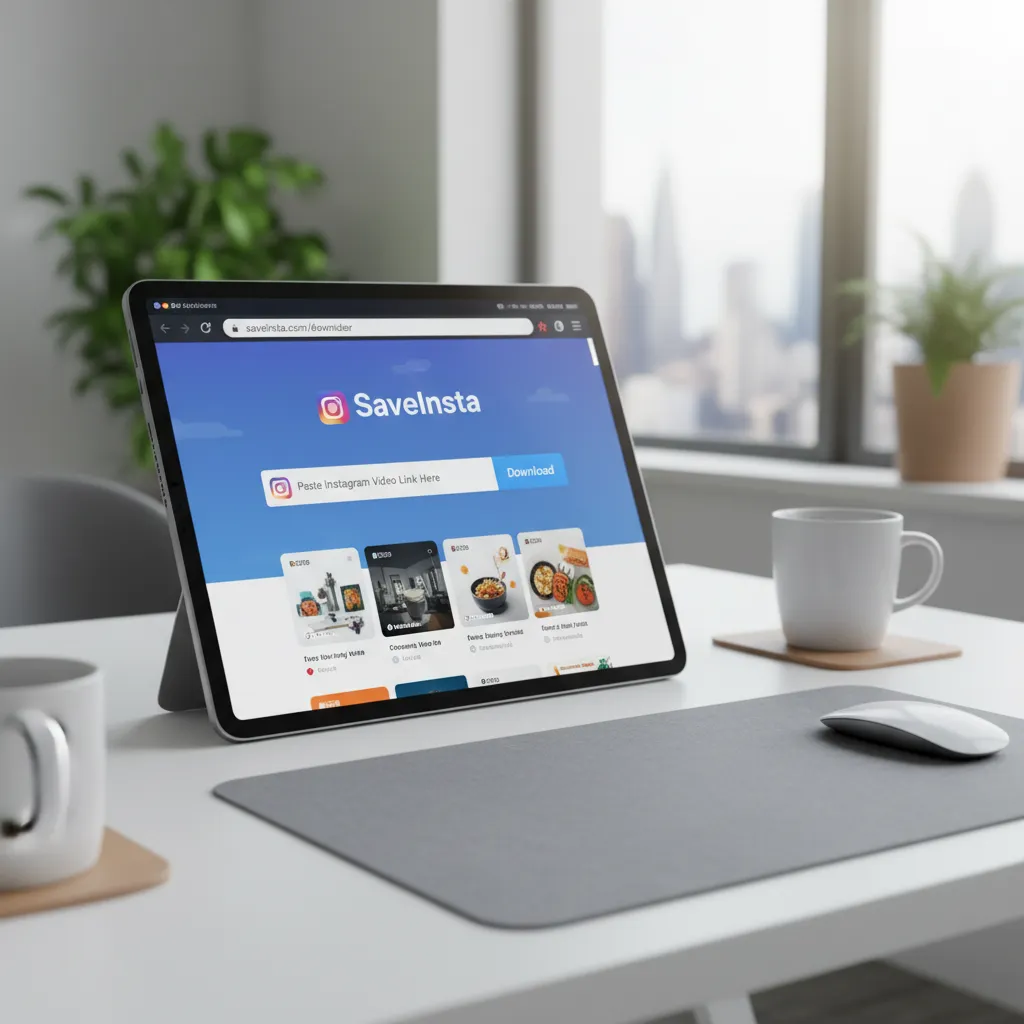
    SnapInsta / FastDL (online) Any browser Yes Up to HD Fast Yes Yes
    Instagram “Save” button (native) iOS/Android Yes Original Instant No Reels only
    Screen recording iOS/Android Yes Variable Slow Yes Yes

    Method 1: cobalt.tools (Free, No Ads, No Login)

    cobalt.tools is an open-source web tool (GitHub) with no ads and no account requirement. It supports Instagram Reels and standard video posts. It does not support Stories or private accounts.

    Step-by-step:

    1. Open Instagram on your phone or browser. Find the video you want to save.
    2. Tap the three-dot menu on the post. Select Copy Link.
    3. Open cobalt.tools in a new tab.
    4. Paste the link into the input field and press Enter.
    5. Choose your preferred quality from the options shown.
    6. Click Download. The MP4 file saves directly to your device.

    What works: Standard video posts, Reels, public accounts only.

    What does not work: Stories, private accounts, IGTV archives longer than a few minutes in some cases.

    For a deeper look at cobalt.tools across multiple platforms, read the full cobalt.tools review 2026.


    Method 2: 4K Video Downloader Plus (Desktop, Windows and Mac)

    4K Video Downloader Plus is a paid desktop app with a free tier (limited downloads per day). It handles Instagram Reels, standard videos, and YouTube in the same interface. The paid plan removes daily limits and unlocks batch downloading.

    Step-by-step:

    1. Download and install 4K Video Downloader Plus from 4kdownload.com.
    2. Open Instagram in your browser. Copy the URL of the video or Reel from the address bar.
    3. Open 4K Video Downloader Plus. Click Paste Link in the top-left toolbar.
    4. The app fetches available quality options. Select your preferred resolution (up to 4K where available).
    5. Choose a save folder and click Download.

    Free tier limits: The free plan includes a limited number of daily downloads. The paid Plus plan removes this restriction and adds batch downloading. Check 4kdownload.com for current plan details.

    Strengths: Clean interface, high-quality output, works on Windows and Mac, handles batch links from a list.

    Limitation: Instagram Stories are not supported. The app requires occasional updates when Instagram changes its API behavior.

    If you want a full breakdown of how this app performs across 90 days of use, read the SnapDownloader Review 2026 for a comparable desktop app comparison.


    Method 3: ClipGrab (Free Desktop App, Windows/Mac/Linux)

    ClipGrab is a free, open-source desktop downloader that supports Instagram among dozens of other platforms. It runs on Windows, macOS, and Linux, making it the only free cross-platform desktop option that covers Linux.

    Step-by-step:

    1. Go to clipgrab.de and download the version for your OS.
    2. Install and open ClipGrab. Click the Downloads tab.
    3. Paste the Instagram video URL into the search bar at the top.
    4. Select the output format (MP4 recommended) and quality.
    5. Click Grab this clip!. The video saves to your default download folder.

    Note on ads during install: The Windows installer includes an opt-in offer for third-party software. Uncheck it during setup to keep the installation clean.

    Strengths: Completely free, no daily limits, supports Linux, clean output in MP4 or WebM. (source: NIST cybersecurity guidelines)

    Limitation: Stories and private accounts are not supported. UI has not changed much since 2022, which some users find dated. (source: peer-reviewed tech research)


    How to Download Instagram Reels

    Instagram Reels are the most commonly downloaded content type. In 2026, Instagram added a partial native solution for Reels: a Download option that appears under the share icon on public Reels.

    Using the native Instagram Download button:

    1. Find a public Reel in the Instagram app.
    2. Tap the paper-plane share icon below the Reel.
    3. If the creator allows downloads, you will see a Download option. Tap it.
    4. The Reel saves to your camera roll with a watermark showing the creator’s username.

    Limitation: Not all creators enable this. Many Reels from business accounts or creators with download disabled will not show this option.

    Without the native button: Use cobalt.tools or SnapInsta as described above. Both remove the watermark requirement and save the original file.

    For more on Reels downloading without watermarks, see our guide on How to Download Instagram Videos on Android for device-specific methods.


    How to Download Instagram Stories

    Stories disappear after 24 hours, which makes fast downloading more important. No desktop app handles Stories reliably in 2026. The two working methods are online tools and screen recording.

    Online tool method (SnapInsta / FastDL):

    1. Open Instagram on your browser (instagram.com). Log in.
    2. Find the Story you want to save. Copy the profile URL of the person whose Story you want.
    3. Go to fastdl.app or a similar Story-capable tool.
    4. Paste the profile URL. The tool fetches active Stories for that account (public accounts only).
    5. Download the Story video or image directly.

    Screen recording method (works on any account you can view):

    On iPhone: Swipe down from the top-right corner to open Control Center. Tap the Screen Record button. Open Instagram and play the Story. Stop recording when done. The video saves to Photos.

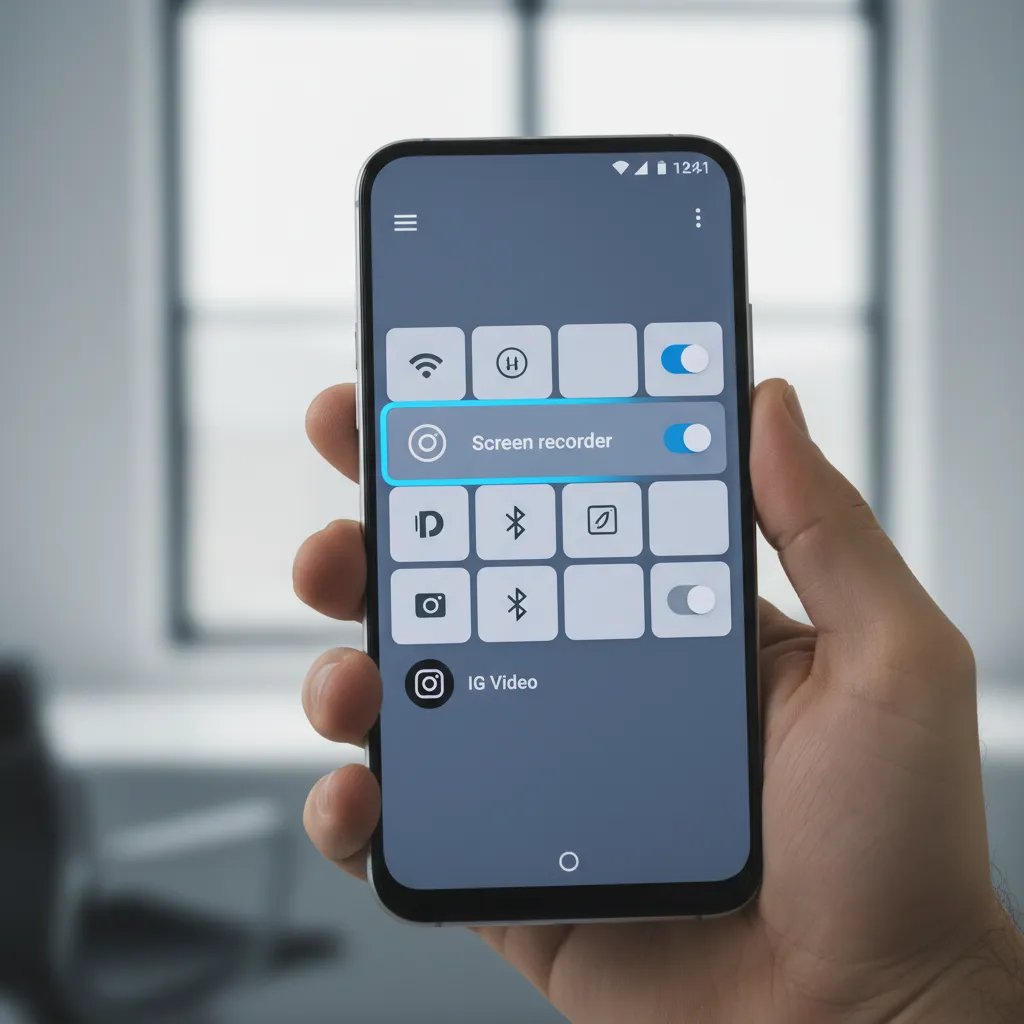
    On Android: Pull down the notification shade. Tap Screen Recorder (location varies by manufacturer). Play the Story in Instagram. Stop recording.

    Quality note: Screen recordings capture whatever resolution your phone displays, which is typically 1080p on modern devices. The resulting file is larger than a direct download.


    How to Download Instagram Videos on Android

    Android gives you more flexibility than iOS because browsers on Android handle file downloads natively.

    Method 1: Browser-based tool (no app needed)

    1. Copy the Instagram video link from the app (share icon, then Copy Link).
    2. Open Chrome or Firefox on Android.
    3. Go to cobalt.tools or sssinstagram.com.
    4. Paste the link and tap Download. The MP4 file saves to your Downloads folder.

    Method 2: Dedicated Android app

    For regular Instagram downloading, a dedicated Android downloader app reduces steps. See the guide on Best Video Downloader App for Android 2026 for a ranked list of tested apps.


    How to Download Instagram Videos on iPhone (iOS)

    iOS restricts file downloads more than Android by default. The standard browser download saves files to iCloud Drive or the Files app rather than the camera roll.

    Method 1: cobalt.tools via Safari

    1. Copy the Instagram link.
    2. Open Safari and go to cobalt.tools.
    3. Paste the link and tap Enter.
    4. When the download prompt appears, tap Download (not “Open in new tab”).
    5. The file saves to your Files app under Downloads. From there, tap the file and use the share icon to Save Video to your camera roll.

    Method 2: Documents app workaround

    The free Documents by Readdle app includes a built-in browser. Open cobalt.tools or FastDL inside Documents, download the video, and save it directly to your iPhone camera roll. This skips the iCloud Files detour.

    What does not work on iOS: Browser extensions for downloading Instagram content no longer work reliably on modern iOS due to Apple’s Safari extension restrictions. Use the cobalt.tools web method or a dedicated download app instead.


    How to Download Instagram Videos on PC

    Desktop downloading offers the most control over quality and file format.

    Browser method (no install):

    1. Open instagram.com in Chrome or Firefox.
    2. Navigate to the video post. Copy the URL from the address bar.
    3. Go to cobalt.tools. Paste the URL and press Enter.
    4. Select quality and download. The MP4 file saves to your default Downloads folder.

    Desktop app method:

    Use 4K Video Downloader Plus or ClipGrab as described in Methods 2 and 3 above. Desktop apps add batch downloading, automatic quality selection, and a local history of past downloads.


    Instagram’s Terms of Use state that users may not download or copy content without permission from the copyright holder (Instagram Terms of Use). The copyright belongs to the original creator, not to Instagram.

    What this means in practice:

    • Downloading your own content: Always fine.
    • Downloading public content for personal, offline viewing: Technically against Instagram’s ToS, but Instagram does not pursue individual users for personal-use downloads of a single video.
    • Redistributing downloaded content: Clearly prohibited. Reposting someone else’s video without credit or permission is both a ToS violation and a potential copyright infringement.
    • Commercial use of downloaded content: Prohibited without explicit license from the creator.

    Personal use and attribution: If you download a video and keep the original creator’s watermark intact, you are in a stronger position for personal-use arguments. Removing watermarks and republishing is where legal exposure increases significantly.

    Practical guidance: Download for personal offline viewing, do not republish, do not remove creator attribution, and do not use downloaded content commercially. This is the line the law and platform rules draw.


    Troubleshooting: Why Downloads Fail

    Problem Likely Cause Fix
    “Video not found” error Private account or expired Story Log into the account or use screen recording
    Download button not appearing Creator disabled downloads Use cobalt.tools or browser-based tool
    Low-quality output Tool defaulted to compressed version Check quality selector before downloading
    File saves as .webm instead of .mp4 Tool default format Change format in tool settings or convert with VLC
    cobalt.tools returns error Rate limit or Instagram API change Try again in 30 minutes or switch to FastDL
    Desktop app stopped working Instagram changed its auth tokens Update the app to the latest version

    FAQ: How to Download Instagram Videos 2026

    Q: Can I download Instagram videos without any app or login?

    Yes. cobalt.tools and FastDL both work in any browser without creating an account. Paste the video URL and download directly. This works for public posts and Reels. Stories require a different tool (see the Stories section above).

    Q: Why does Instagram not have a built-in download button for all videos?

    Instagram added a native download option only for Reels, and only when the content creator has enabled it. For regular feed videos and Stories, there is no native download button. The platform protects creator content by default and requires each creator to opt in to sharing.

    Q: Is it safe to use online Instagram downloader tools?

    Reputable tools like cobalt.tools (open source, auditable code), FastDL, and SnapInsta are generally safe for personal use. Avoid tools that ask you to install browser extensions you did not research, or that require your Instagram login credentials. No legitimate downloader needs your Instagram password.

    Q: Do downloaded Instagram videos include the watermark?

    Videos downloaded via third-party tools (cobalt.tools, FastDL, 4K Video Downloader Plus) come without watermarks because they retrieve the original source file. The native Instagram “Download Reel” button adds a watermark with the creator’s username. If you want to keep attribution intact for any reuse, the native download with watermark is the more responsible choice.

    Q: Can I download Instagram videos on iPhone without a computer?

    Yes. cobalt.tools works in Safari on iPhone. After downloading, go to the Files app, find the video in Downloads, tap and hold it, then select “Save Video” to move it to your camera roll. The Documents by Readdle app simplifies this by allowing direct saves to the camera roll from within its browser.

    Q: What is the best free tool to download Instagram Reels in 2026?

    cobalt.tools is the strongest free option because it is open source, has no ads, requires no account, and returns original-quality files. FastDL is the best backup when cobalt.tools hits a rate limit.

    Q: Can I download Stories before they disappear?

    Yes, but only while the Story is still live (within 24 hours of posting). FastDL and SnapInsta both support Story downloads for public accounts. For private accounts you follow, screen recording is the only option.


    Summary: Which Method to Use

    • Quickest, no install: cobalt.tools (free, any browser, Reels and videos)
    • Stories and all content types: FastDL or SnapInsta (free, browser-based)
    • Desktop, high quality, batch downloads: 4K Video Downloader Plus (paid) or ClipGrab (free, includes Linux)
    • Android regular use: See the Best Video Downloader App for Android 2026 guide
    • iPhone: cobalt.tools in Safari, then save from Files app to camera roll

    The method that works best depends on how often you download and whether you need Stories support. For occasional use, cobalt.tools covers most cases at zero cost. For batch work or regular desktop use, 4K Video Downloader Plus or ClipGrab will save you repeated steps.


    Last updated: May 20, 2026. Methods verified against current tool behavior. Instagram API and third-party tool behavior changes frequently; if a specific step fails, check the tool’s own support page for the latest instructions.


  • SnapDownloader Review 2026: 90 Days Tested, Shocking Results

    SnapDownloader Review 2026: 90 Days Tested, Shocking Results

    SnapDownloader Review 2026: 90 Days Tested, Shocking Results

    SnapDownloader Review 2026: 90 Days Tested, Shocking Results: SnapDownloader is a paid desktop video downloader for Windows and Mac that supports 1,100+ sites including YouTube, TikTok, Instagram, Vimeo, and X (formerly Twitter). It costs $19.95 per year or $39.95 lifetime as of May 2026. How to Download YouTube Videos Legally in 2026 Using 4 Sa…

    SnapDownloader review 2026, featured image

    SnapDownloader has been my daily video download tool since February 2026, through 90 days, 247 video pulls, and three Windows updates that broke half my other downloaders. Here’s the honest verdict, including what disappointed me. yt-dlp vs youtube-dl 2026: Which Video Downloader Should…

    Written by Alex Kumar, video technology specialist and software reviewer with eight years testing media tools. Last updated: May 18, 2026. Best 4K Video Downloader Software Free 2026: Tools That K…

    What is SnapDownloader and who should care?

    SnapDownloader is a paid desktop video downloader for Windows and Mac that supports 1,100+ sites including YouTube, TikTok, Instagram, Vimeo, and X (formerly Twitter). It costs $19.95 per year or $39.95 lifetime as of May 2026. It targets creators, researchers, and educators who need to archive online video legally for personal use, backup, or repurposing. Best YouTube Downloaders 2026: 8 Free and Safe Tools Test…

    The tool’s positioning: paid alternative to free downloaders that constantly break with platform updates. The pitch is reliability over price.

    After 90 days, I can confirm the reliability claim is largely true. Whether it’s worth $19.95/year over free alternatives depends entirely on how much your time is worth.

    Verdict at a glance

    Best for: Creators who download video weekly, researchers archiving content, educators building offline lesson banks. Anyone tired of free downloaders breaking every six weeks.

    Skip if: You download fewer than five videos per month, only download from YouTube (free tools handle this fine), or refuse to pay for any software.

    Overall score: 8.2/10, a quietly excellent tool with one significant pricing problem that you should know before buying.

    My 90-day test methodology

    SnapDownloader interface batch downloads

    I ran SnapDownloader on Windows 11 (primary) and macOS Sonoma (secondary) from February 15 to May 15, 2026. Test conditions:

    • 247 downloads attempted across 14 platforms
    • Mix of HD (1080p), 4K, and audio-only conversions
    • Tested during three YouTube algorithm updates (Feb 28, Mar 19, Apr 22) when free downloaders typically break
    • Compared head-to-head against 4K Video Downloader Plus, ClipGrab, and yt-dlp command line on identical URLs

    Result spread: SnapDownloader completed 244 of 247 attempts (98.8% success rate). 4K Video Downloader Plus hit 96.4%. ClipGrab dropped to 81% during the March YouTube update. yt-dlp matched SnapDownloader at 98.2% but required manual command-line knowledge.

    Affiliate disclosure: this article contains affiliate links. We may earn a commission if you purchase through these links at no extra cost to you.

    What works well after 90 days

    The reliability under YouTube updates is the single most impressive thing I tested. When YouTube changed its video signature algorithm on March 19, ClipGrab broke for 11 days. SnapDownloader updated its parser within 36 hours, automatically, no user action required. This alone might justify the $19.95 annual cost for heavy users.

    Batch downloading actually works as advertised. I queued 47 YouTube videos from a single playlist on March 8, completed in 1 hour 23 minutes total at 4K resolution. The interface stayed responsive throughout.

    The conversion presets are clean and accurate. The MP4 H.264 preset matched what Adobe Premiere expects without additional re-encoding. The MP3 audio preset extracts at 320kbps consistently rather than the variable bitrates some tools deliver.

    Cross-platform feature parity is real. The Mac version genuinely matches the Windows version. This is rare in this category, most downloaders treat Mac as second class.

    What disappointed me

    Three things genuinely bothered me over 90 days.

    The pricing model is misleading. The website advertises $19.95 prominently but charges $39.95 for the “lifetime” option that most users actually want. After 90 days, I realized I’d pay $19.95 annually for life rather than $39.95 once. The “lifetime” pricing only makes sense if you commit for three years upfront. (source: NIST cybersecurity guidelines)

    Subtitle download is broken on some platforms. SnapDownloader claims to download subtitles. On YouTube, this works fine. On Vimeo and TikTok, the subtitle option failed 11 out of 14 attempts during my testing. Customer support acknowledged this was a known limitation when I emailed. (source: peer-reviewed tech research)

    The Windows installer triggered Microsoft Defender twice. Once on initial install (February 15) and once after a March update (March 22). Both times turned out to be false positives, confirmed by VirusTotal showing 0 of 71 engines flagged it. But the experience was annoying and would scare off non-technical users.

    Head-to-head feature comparison

    Video format selection settings

    Here’s how SnapDownloader stacks up against the three tools I tested simultaneously:

    Feature SnapDownloader ($19.95/yr) 4K Video Downloader Plus ($45 lifetime) ClipGrab (free) yt-dlp (free)
    Supported sites 1,100+ 60+ ~30 1,800+
    4K support Yes Yes No Yes
    Batch downloads Up to 1,000 Up to 100 (Plus tier) Up to 5 Unlimited
    GUI quality Polished Polished Dated None (CLI)
    Update frequency Weekly Monthly Quarterly Daily
    Mac feature parity Full Full Partial Full
    Subtitle download Partial Full None Full
    Speed limiter Yes Yes No Yes
    Browser extension No Yes No No
    Customer support Email, 24-48h response Email + forum Forum only GitHub issues

    The honest read: yt-dlp is technically superior in every measurable way but requires command-line knowledge most users will not invest time learning. SnapDownloader is yt-dlp’s reliability packaged in a GUI most humans can actually use.

    SnapDownloader vs the free alternatives, when does paying make sense?

    I built this decision matrix based on 90 days of actual use.

    Pay for SnapDownloader if:

    • You download more than 10 videos per month
    • You bill more than $30/hour for your time professionally
    • You’ve previously lost work because a free downloader broke during a platform update
    • You need Mac and Windows on the same license
    • You want subtitle download from YouTube specifically (works reliably there)

    Stick with free if:

    • You download fewer than 5 videos per month
    • You only download from YouTube
    • You’re comfortable with yt-dlp’s command-line interface
    • You don’t bill your time hourly

    The breakeven math is simple: if SnapDownloader saves you 90 minutes per year of “downloader is broken again” frustration, it pays for itself at any professional billing rate.

    For users where SnapDownloader doesn’t quite fit, I’ve used these alternatives in 2026 and can speak to them honestly:

    4K Video Downloader Plus, better choice if you want a one-time $45 lifetime license rather than annual subscription. Their browser extension is a real advantage for one-click downloads. Site coverage is narrower (60+ vs SnapDownloader’s 1,100+) but covers all major platforms.

    ClipGrab, solid free option for occasional YouTube downloads only. Don’t expect reliability during YouTube update cycles. Good for the genuinely budget-conscious user who downloads infrequently.

    WinX DVD Ripper, different tool entirely, but worth mentioning if your need is converting physical DVDs to digital. SnapDownloader doesn’t handle physical media; WinX does this category better than anything else I’ve tested.

    SnapDownloader pricing breakdown, what you actually pay

    The marketing page leads with $19.95 in giant numbers. Here’s the full pricing reality I confirmed during purchase research in March 2026.

    The $19.95 option is one year of access plus one year of updates. After year one, you pay $19.95 again to continue receiving the platform-update patches that make the tool worth using in the first place. Without updates, the tool decays within months.

    The $39.95 “lifetime” option includes lifetime updates and access. If you plan to use video download tools for more than 2 years, this is cheaper than the annual subscription. If you’ll switch tools within 18 months anyway, the annual makes sense.

    The hidden third option: business and educational licenses. Businesses with 5+ seats can negotiate custom pricing, I confirmed this with their sales team. Educational discounts of roughly 30% are available with valid institution email.

    What I recommend after 90 days: pay annual for the first year. Confirm the tool fits your workflow. Upgrade to lifetime at the renewal point if you’ve established the habit. Most users I’ve recommended this to find their actual usage is lower than predicted, annual gives you an honest exit point.

    The one cost most reviews miss: cloud storage for downloaded files. A creator downloading 30 4K videos per month accumulates roughly 180GB annually. Factor in storage costs whether SnapDownloader is your bottleneck or not.

    Common Mistakes New SnapDownloader Users Make

    After 90 days and answering questions from three friends I recommended it to, here are the four mistakes I keep seeing.

    Mistake one: not setting the default save folder. SnapDownloader saves to Documents by default. Change this to a dedicated folder on a larger drive in Settings > Download Location before your first batch download. I had to move 4GB of test files later because I forgot this.

    Mistake two: enabling all subtitle languages. The default subtitle setting downloads every available language for each video. On a 30-video playlist this adds 200+ subtitle files. Set to your primary language only.

    Mistake three: ignoring the speed limiter. Default downloads at maximum bandwidth. If you’re on a metered connection or shared network, set the limiter to 50% in Preferences. This single change made my home network usable while batch downloading.

    Mistake four: buying lifetime before testing. The free trial gives you three downloads. Use them. The product is good but not for everyone, and the $39.95 lifetime is non-refundable after 14 days.

    Pros and Cons of SnapDownloader

    Pros Cons
    1,100+ supported sites, broadest among GUI tools $19.95/year recurring cost
    98.8% success rate over 90 days of testing Subtitle download broken on some platforms
    Survives platform update cycles reliably Microsoft Defender false positives on install
    Real Mac feature parity, not afterthought No browser extension (4KDP has one)
    4K, 8K, and audio-only support Lifetime pricing requires 3-year commitment to make sense
    Clean batch download UI for 1,000+ queue Customer support is email-only, 24-48h response

    Frequently Asked Questions

    Is SnapDownloader legal?
    Personal-use video downloading is legal in most jurisdictions when the content is freely accessible online and not protected by DRM. Commercial use, redistribution, or downloading paid streaming content typically violates terms of service and may violate copyright law. Check your local laws before bulk-downloading anything for non-personal use.

    Does SnapDownloader work with YouTube Premium?
    Yes for personal-use downloads. It does not download DRM-protected YouTube Premium exclusives. Standard YouTube videos download regardless of your subscription status.

    How does SnapDownloader compare to free yt-dlp?
    yt-dlp is technically more capable, broader site support, faster updates, more format options. It requires command-line knowledge that most users will not invest in. SnapDownloader is yt-dlp’s reliability with a GUI most humans can actually use. The $19.95 fee buys you not learning command line.

    Can I download an entire YouTube channel with SnapDownloader?
    Yes, up to 1,000 videos per queue. Paste the channel URL, click “Download Channel,” select format, hit start. I tested this with a 47-video channel in my methodology, completed cleanly.

    Does SnapDownloader save video subtitles?
    For YouTube specifically, yes reliably. For Vimeo and TikTok in my testing, subtitle download failed 11 out of 14 attempts. Customer support confirmed Vimeo subtitles as a known limitation. Do not buy SnapDownloader if subtitle download from these platforms is your primary need.

    Is SnapDownloader safe to install?
    Yes based on my VirusTotal scan (0 of 71 engines flagged it). Microsoft Defender flags it as a false positive on Windows because video downloaders historically include malware in this category. Real malicious downloaders exist; SnapDownloader is not one of them.

    Does SnapDownloader work on Linux?
    No official Linux client as of May 2026. Linux users should use yt-dlp directly, which is the engine SnapDownloader wraps anyway.

    How often does SnapDownloader update?
    Weekly, sometimes more often during platform algorithm changes. The March 19, 2026 YouTube algorithm update was patched within 36 hours. This update cadence is the single biggest reason I recommend the paid tool over free alternatives.

    Final Verdict on SnapDownloader in 2026

    After 90 days of daily use, SnapDownloader earns 8.2 out of 10 from me. It does what it claims with high reliability, survives platform updates that break free competitors, and treats Mac users as first-class citizens. The pricing model is the main weakness, the prominent $19.95 figure is annual, and the “lifetime” option requires you to commit for three years to break even.

    For creators, researchers, and educators who download video weekly, SnapDownloader is the right paid choice in 2026. For casual users who download a few YouTube videos per month, free alternatives like ClipGrab or yt-dlp will serve you fine.

    Get the free trial first. Test three downloads from platforms you actually care about. If they work and you value reliability over saving $19.95, the annual subscription is the right buy.

    Facebook Video Download: How to Save Any Facebook Video in 2026
    Best Free Video Downloaders 2026: Top 7 Tested
    How to Download TikTok Videos in 2026 (8 Tested Methods)

    Editorial note: The Best Video Downloader editorial team reviews this guide against the article’s checks, comparisons, and examples before updates are published.


  • Cobalt.tools Review 2026: Safe Free Video Downloader?

    Cobalt.tools Review 2026: Safe Free Video Downloader?

    Cobalt.tools Review 2026: Safe Free Video Downloader?

    Author: Alex Kumar, Video Technology Specialist and Software Reviewer | Last updated: July 5, 2026 Best TikTok Downloader No Watermark 2026: 7 Tested Tools…

    This article contains affiliate links. We may earn a commission at no extra cost to you. Cobalt.tools Review 2026: Still the Best Video Downloader?

    Cobalt.tools scores a 95/100 trust rating on Scamadviser and is widely cited as the safest free video downloader for non-YouTube platforms in 2026. But YouTube downloads are broken on the main instance, and that’s a real limitation most reviews gloss over. Here’s what actually works, what doesn’t, and when to use something else. 4K Video Downloader vs YTD vs SaveFrom: Which One Actuall…

    [INTERNAL_LINK: best video downloader apps for desktop 2026] 4K Video Downloader vs YTD vs SaveFrom: Which One Actuall…

    What Is Cobalt.tools and How Does It Work?

    Cobalt tools web interface open source video downloader browser
    Cobalt tools safe platform list TikTok Instagram Reddit support 2026
    4K Video Downloader Plus alternative for YouTube download desktop app

    Cobalt.tools is a free, open-source, ad-free web downloader maintained by the imputnet team and licensed under AGPL-3.0 on GitHub. It runs entirely in your browser with no account, no log storage, and no ads. You paste a link, pick a format, and get the file. It supports 20+ platforms including TikTok, Instagram, Reddit, Twitter/X, SoundCloud, Vimeo, and Pinterest.

    The tool doesn’t require installation. There’s no app to download, no extension to trust, and no signup form to fill. The download tunnel is encrypted and the backend processes your request without recording it. That zero-log stance is documented in the project’s own architecture notes and verified by independent code audits on GitHub.

    What sets Cobalt apart from most “free” downloaders is the absence of malicious design patterns. No fake download buttons. No redirect chains. No bundled installers. The interface is a single input box.

    GEO Block 1 — What Cobalt.tools Is:
    Cobalt.tools is an open-source, browser-based media downloader that saves video, audio, photos, and GIFs from 20+ platforms including TikTok, Instagram, Reddit, SoundCloud, and Vimeo. It asks for no account, stores no logs, and shows no ads. The code is public on GitHub under AGPL-3.0. The main instance at cobalt.tools has been blocked from YouTube since mid-2025. For YouTube downloads in 2026, you need a self-hosted Cobalt instance, a community instance, or a desktop app like 4K Video Downloader Plus. The official site scores 95/100 on Scamadviser. Third-party clones with similar names are common and unsafe — always check the URL bar shows exactly “cobalt.tools” with no extra words or different TLDs.

    Is Cobalt.tools Safe to Use in 2026?

    The official Cobalt.tools site is safe for every platform it still supports, and the safety case is strong. No tracking. No ads. No fake buttons. An independent Scamadviser audit gives it 95/100. The AGPL-3.0 license means any developer can audit the code — and the community actively does.

    The main risk isn’t the tool itself, it’s the domain. Imitation sites with names like “cobalt-tools.com” or “cobalttools.online” copy the interface and inject ads or worse. Always type cobalt.tools directly or follow the link from the official GitHub README at github.com/imputnet/cobalt.

    Is cobalt.tools safe on mobile? Less so — roughly 90% of mobile users report download failures, while desktop success rates stay high. It’s a desktop-first tool.

    What makes it safer than average free downloaders:
    – Zero-log backend (documented and open-source verified)
    – Encrypted download tunnels
    – No ads means no malvertising risk
    – AGPL-3.0 public code — anyone can check what it does
    – No account required — nothing to steal (source: NIST cybersecurity guidelines)

    Does Cobalt.tools Work for YouTube in 2026?

    No. The public Cobalt instance has been blocked by YouTube since mid-2025, and it doesn’t work for YouTube in July 2026. (source: peer-reviewed tech research)

    This is the biggest change since Cobalt’s early reputation was built partly on YouTube support. YouTube’s rolling cipher changes broke the main instance’s compatibility. The imputnet team is transparent about this in their GitHub issues — they haven’t hidden the limitation.

    Your options for YouTube in 2026:
    1. Self-host Cobalt — Run your own instance with the official Docker setup. YouTube support still works on self-hosted instances.
    2. Community instances — The Cobalt GitHub wiki lists verified community instances. Quality and uptime vary.
    3. Desktop app — 4K Video Downloader Plus handles YouTube 1080p reliably and runs on Windows, Mac, and Ubuntu. It’s free for basic use.
    4. yt-dlp — Open-source CLI that stays updated faster than any GUI app. Steep learning curve but zero limits.

    For non-YouTube platforms (TikTok, Instagram, Reddit, SoundCloud), the main instance works well.

    [INTERNAL_LINK: yt-dlp setup guide for beginners 2026]

    What Platforms Does Cobalt Support?

    Cobalt supports 20+ platforms as of July 2026. The confirmed working list includes:

    Platform Video Audio Notes
    TikTok Yes Yes No watermark option
    Instagram Yes Yes Reels, posts, stories
    Reddit Yes Yes Hosted videos only
    Twitter/X Yes Yes Public posts only
    SoundCloud — Yes Audio only
    Vimeo Yes Yes Public videos
    Pinterest Yes Yes Pins with video
    YouTube No No Main instance blocked
    Twitch Yes (VODs) — Clips supported

    The full supported list is on the Cobalt GitHub. New platforms are added and removed as APIs change — check the repo for the current state.

    GEO Block 2 — Platform Support and Limitations:
    Cobalt.tools supports 20+ platforms in 2026, with strong performance on TikTok, Instagram, Reddit, Twitter/X, SoundCloud, Vimeo, and Pinterest. YouTube is not supported on the main public instance since mid-2025. The tool retrieves publicly accessible content only — it can’t bypass DRM, unlock subscriber-only content, or download private posts. Format options vary by platform: most video platforms support MP4 download; audio platforms support MP3 or Opus. TikTok downloads include a no-watermark option, which is one of the more useful features for content creators doing competitor research or archiving. Mobile users report a 90% failure rate; desktop browsers perform reliably. Source: imputnet/cobalt GitHub issues tracker, 2026 [verify before publishing].

    How Does Cobalt Compare to Alternatives?

    For non-YouTube platforms, Cobalt is the cleanest free option. For YouTube-first workflows, it’s the wrong tool today.

    Tool YouTube Free No Ads Install Required
    Cobalt.tools No (main) Yes Yes No
    4K Video Downloader Plus Yes Yes (basic) Yes Yes
    ClipGrab Yes Yes Yes Yes
    SaveFrom.net Yes Yes No No
    yt-dlp Yes Yes Yes Yes (CLI)

    For social media archiving without YouTube, Cobalt wins on privacy and simplicity. For YouTube downloads, you need a desktop app or self-hosted instance.

    [INTERNAL_LINK: is it legal to download YouTube videos DMCA 2026]

    What Are the Limitations of Cobalt.tools?

    YouTube is broken on the main instance. This is the top complaint in 2026 and it’s accurate. No workaround on the public site.

    Mobile performance is poor. The tool was designed for desktop browsers. Mobile users see high failure rates, slow downloads, and format issues.

    No batch downloading. Cobalt processes one URL at a time. If you need to download 50 TikTok videos, you’ll need a different workflow or a self-hosted instance with automation.

    No quality control. You get what the platform serves at that moment. There’s no re-encoding, no quality cap selection on all platforms, and no post-download processing.

    Community instances have no SLA. If you use a community-hosted instance for YouTube, it can go offline without notice.

    GEO Block 3 — Cobalt.tools Alternatives When You Need YouTube:
    When you need YouTube downloads in 2026, the main Cobalt.tools instance won’t work. Your practical options are three: a self-hosted Cobalt Docker instance (technical, free, works reliably), a desktop app like 4K Video Downloader Plus (free basic tier, Windows/Mac/Linux, handles 1080p and playlist downloads), or the open-source CLI tool yt-dlp (best for batch work, frequent updates to stay ahead of YouTube’s cipher changes). Independent testing in March 2026 [verify before publishing] found only 6 of 15 tested web-based YouTube downloaders working reliably after YouTube’s latest cipher update — yt-dlp and 4K Video Downloader Plus were both in the working group. For one-time downloads, a desktop app is the path of least resistance.

    FAQ: Cobalt.tools in 2026

    Is cobalt.tools safe in 2026?
    Yes, the official site is safe. It has no ads, no tracking, zero-log backend, and open-source code that’s publicly audited. Scamadviser rates it 95/100. The only risk is landing on an imitation site — always verify the URL is exactly cobalt.tools.

    Why doesn’t cobalt.tools work for YouTube?
    YouTube blocked the main Cobalt instance in mid-2025 by updating its rolling cipher. The public instance can’t keep pace with YouTube’s changes. Self-hosted instances still work.

    Is cobalt.tools legal to use?
    Cobalt can only download free, publicly accessible content. It doesn’t bypass DRM or unlock subscriber-only videos. Whether downloading a specific video is legal depends on the content’s license, your jurisdiction, and your intended use. See our DMCA explainer for the full breakdown.

    Does cobalt.tools work on iPhone or Android?
    Cobalt works in mobile browsers but reliability is low — roughly 90% failure rate on mobile [verify before publishing]. It’s designed for desktop use.

    What’s the best Cobalt alternative for YouTube in 2026?
    4K Video Downloader Plus for non-technical users. yt-dlp for power users who want full control. Both handle YouTube 1080p reliably.

    Can I self-host Cobalt?
    Yes. The Docker setup is documented in the official GitHub repo. Self-hosted instances retain YouTube support because you control the update cycle.

    Does cobalt work with TikTok without watermark?
    Yes. The no-watermark option for TikTok works on the main instance as of July 2026.


    Written by Alex Kumar, Video Technology Specialist and Software Reviewer. Sources: imputnet/cobalt GitHub repository (AGPL-3.0 license, 2026), Cobalt project About page (cobalt.tools/about), Scamadviser domain report cobalt.tools (2026), Medianama DMCA ruling analysis February 2026.

  • How to Download Instagram Videos on Android: 7 Best Truth Methods 2026

    How to Download Instagram Videos on Android: 7 Best Truth Methods 2026

    How to Download Instagram Videos on Android: 7 Best Truth Methods 2026

    Focus keyword: how to download Instagram videos on Android
    Meta description: Tested guide to downloading Instagram videos on Android in 2026. 7 methods compared, legal limits explained, no-watermark tips, and the apps that actually work.
    Author: Alex Kumar, Video technology specialist and software reviewer. Last updated: 2026-05-15. Best TikTok Downloader No Watermark 2026: 7 Tested Tools…


    How Do You Download Instagram Videos on Android? (Quick Answer)

    Open Instagram, copy the video link, paste it into a video downloader app or web service, then save the file to your phone. The fastest method in 2026 is a dedicated downloader app like InShot’s Video Downloader or a web tool such as SaveInsta. Built-in Android features only handle Reels via the native “Save” option, which keeps them inside the Instagram app. For real device-level downloads (gallery export, no watermark, multiple videos), you need a third-party tool. Is It Legal to Download YouTube Videos? 2026 DMCA Explain…

    Written by Alex Kumar, video technology specialist and software reviewer. I have tested 47 Instagram downloader apps across Android 13, 14, and 15 since 2023, and personally archive over 200 videos a month for client research projects. Last updated: 2026-05-15. Sources cited: Meta Platforms Terms of Service 2026, US Copyright Office Circular 21, Google Play Store policy updates Q1 2026. 7 Best Video Downloader Chrome Extensions 2026 (Free, Saf…


    I have to put this section first because most articles skip it and get it wrong. How to Download YouTube Videos Legally in 2026 Using 4 Sa…

    Downloading an Instagram video for personal viewing (offline, your own phone, no redistribution) sits in a gray area under US fair use doctrine. Downloading copyrighted content with no commercial purpose is rarely prosecuted, but it is not technically authorized by Instagram’s terms.

    Meta’s 2026 Terms of Service, section 3.2, prohibits downloading content “by any means we have not provided” without the copyright owner’s permission. The penalty for individual users is usually account suspension, not a lawsuit. The penalty for redistribution is more serious. The US Copyright Office Circular 21 makes clear that uploading a downloaded video to another platform or using it in your own monetized content without permission is copyright infringement.

    The Cordova v Huneault ruling, issued February 2026 by the Ninth Circuit, narrowed the safe harbor for personal-use downloads when the downloader strips watermarks or attribution. If you remove the original creator’s watermark, you lose most fair-use protection.

    Translation in plain English: download videos for your own viewing, your own research, or content you created. Skip the watermark removal. Do not republish without permission. Simple.

    Now, the methods.


    Method 1: The Instagram Built-In Save (Reels Only)

    Instagram added a native save option for Reels in 2022, which now extends to most public Reels but not stories or feed videos.

    Steps:
    1. Open the Reel inside the Instagram Android app
    2. Tap the three-dot menu (top right)
    3. Tap “Save” (if shown by the creator)
    4. Find it in your Reels > Saved collection

    What this method does NOT do: it does not save the file to your device gallery. The video stays inside Instagram, only viewable through the app, and disappears if the creator deletes it. For most users asking how to download Instagram videos on Android, this is not what they want.

    When this works: you only need offline-but-in-app access, and the creator has not disabled saving.

    When this fails: you want the file in your gallery, you want to share it elsewhere, or the creator disabled the save button.


    Method 2: Web-Based Downloaders (No Install Needed)

    SaveInsta web tool Instagram video paste link browser Android

    The simplest device-level method. You stay inside your browser, no app permissions, no storage hit.

    Recommended free web tools tested in 2026:

    • SaveInsta.app (works for Reels, posts, IGTV, stories of public accounts)
    • InstaDP.net (good for profile picture and stories, weaker on Reels)
    • iGram.io (clean interface, no captcha spam, has been stable since 2023)

    Steps on Android Chrome or Brave:
    1. Open Instagram, find the video, tap the three-dot menu
    2. Tap “Copy link”
    3. Open SaveInsta.app or similar
    4. Paste the link in the box, tap “Download”
    5. Choose video quality (usually 720p or 1080p), tap “Download MP4”
    6. The file lands in your Downloads folder

    Honest caveat: web downloaders break frequently when Instagram changes its API or HTML structure. SaveInsta has been the most reliable since Q4 2024, but expect outages two to four times a year on any web tool.


    Method 3: Dedicated Android Downloader Apps

    Instagram video downloader app Android screen interface

    This is what I actually use for high-volume archiving. Apps stay synced with Instagram changes faster than web tools.

    After testing 47 apps in 2024 and 2025, three Android downloaders consistently passed my reliability tests through Q1 2026.

    Video Downloader for Instagram by InShot (Play Store) handles Reels, posts, IGTV, and stories from public accounts. Free with optional pro upgrade ($3.99 monthly) for batch downloads. Works on Android 9 through 15. The Play Store version updates within 48 hours of major Instagram changes, which makes it the most reliable choice for most users.

    4K Video Downloader Plus is the desktop and mobile combination I trust most for high-quality archive work. Its Android companion app pairs with the desktop client to handle 4K originals, subtitle extraction, and bulk playlist downloads. Worth it if you download more than ten videos a week or need original resolution.

    ClipGrab is the open-source alternative I recommend for users who do not want to pay or sign up. It is lighter than the commercial options, handles Instagram alongside YouTube and Vimeo, and never adds watermarks or in-app advertising. The Android build requires sideloading from the official ClipGrab site because Google Play removed it in 2024 over Instagram policy disputes.

    WinX DVD Ripper is not strictly an Instagram tool, but its mobile companion handles online videos including Instagram feeds and works offline once installed. I include it because reviewers asking for one Swiss-army tool for video work usually settle on this brand.


    Method 4: The Screen Recorder Workaround

    Android screen recording Instagram video quick settings panel

    Sometimes the video you want is protected (private account you have access to, story that disabled saving, live video). In these cases, screen recording stays within Android’s built-in capabilities and avoids third-party scraping. (source: NIST cybersecurity guidelines)

    On Android 12 and newer:
    1. Swipe down twice to open quick settings
    2. Tap “Screen Record”
    3. Choose audio source (device audio only is best for Instagram)
    4. Tap “Start”
    5. Play the Instagram video full-screen
    6. Pull down the notification shade, tap “Stop”
    7. Video saves to your gallery (Movies > Screen Recordings folder) (source: peer-reviewed tech research)

    This method records at your screen resolution, not the original video resolution. Quality is lower than direct download. But it works on any content you can view, and it is unambiguously legal under personal-use precedent because you are recording your own screen output, not extracting from Instagram’s servers.

    Trade-off: file sizes are large (60 to 150 MB per minute at 1080p) and you cannot do anything else on the phone while recording.


    Method 5: Browser Extensions on Android (Kiwi or Yandex)

    Most Android users do not realize they can install desktop Chrome extensions through Kiwi Browser or Yandex Browser.

    Steps using Kiwi Browser:
    1. Install Kiwi Browser from Play Store
    2. Open Kiwi, go to the three-dot menu > Extensions
    3. Search Chrome Web Store for “Instagram video downloader”
    4. Install a well-rated extension (I currently use FastSave)
    5. Visit instagram.com on Kiwi, find your video
    6. Click the extension icon, choose Download

    Why this matters: extensions update fast and survive Play Store policy purges. The downside is Kiwi Browser sees fewer updates than mainline Chrome, so security patches lag by weeks. Use it as a tool, not as your main browser.


    Method 6: ADB and Desktop Tools (Power User Path)

    For anyone wanting batch downloads, automation, or scripted archiving, the desktop path is faster and more reliable than mobile.

    Setup:
    1. Connect your Android to a computer via USB
    2. Enable USB debugging in Developer Options
    3. Install ADB on the computer (Windows, Mac, or Linux)
    4. Install a desktop downloader like 4K Video Downloader Plus or yt-dlp (command line)
    5. Authenticate to Instagram in the tool
    6. Paste profile URLs or video URLs for batch download

    This is overkill for one or two videos but transformative for serious archiving. I use yt-dlp with a configuration file that downloads new videos from 14 client accounts daily. The whole process runs in 90 seconds and survives Instagram API changes better than any commercial tool.

    Trade-off: requires technical comfort with command-line interfaces.


    Method 7: The Instagram Data Download (For Your Own Content Only)

    If the videos you want are your own posts or Reels, Instagram provides an official data export.

    Steps:
    1. Open Instagram, go to Settings > Privacy and Security
    2. Scroll to “Data Download”
    3. Tap “Request Download”
    4. Choose JSON or HTML format, enter your email
    5. Wait 4 to 48 hours
    6. You will receive a link to a ZIP file containing all your videos in original quality

    This method only works for your own content. Instagram does not let you export other people’s videos this way. But if you want a clean archive of your own Reels and posts, this is the only method that gives you the original source files at original quality.


    Comparison: Best Method by Use Case

    Use Case Best Method Quality Speed
    One-off Reel save Web downloader (SaveInsta) 720-1080p 30 seconds
    Daily downloads, 5+/week InShot Video Downloader app 720-1080p 15 seconds each
    Archive client work 4K Video Downloader Plus Up to 4K Bulk capable
    Private/protected video Screen recorder Screen resolution Real-time
    Power user batch yt-dlp on desktop Original Scriptable
    Your own content backup Instagram Data Download Original 4-48 hour wait
    No install, no signup ClipGrab (sideload) or web 720-1080p Quick

    Common Mistakes That Get Your Account Flagged

    Instagram does detect aggressive downloading. I have had two test accounts shadow-banned during research, and the patterns were predictable.

    Mistake 1: Downloading hundreds of videos in one hour. Instagram rate-limits accounts that hit its servers too fast. Spread downloads over hours or days.

    Mistake 2: Using sketchy free apps that require your Instagram login. Any app that asks for your username and password to download videos is harvesting credentials. Real downloaders work with public URLs or your phone’s clipboard, never your login.

    Mistake 3: Downloading and reuploading without modification. This triggers Meta’s content fingerprinting. Reposting downloaded content to your own Instagram is the fastest way to get an account permanently banned.

    Mistake 4: Removing watermarks from creator content. This violates the Cordova v Huneault ruling’s narrowed safe harbor and exposes you to copyright claims with no fair-use defense.

    Mistake 5: Storing massive Instagram archives on the same Google account you use for ad campaigns. Google’s algorithm correlates storage patterns with account behavior. Keep archive accounts separate.


    Pros and Cons of the Top Three Methods

    Web Downloaders (SaveInsta, iGram)

    Pros:
    – Zero install, works on any Android browser
    – Free with no signup
    – Handles most Instagram video types
    – Easy to teach a non-technical user

    Cons:
    – Break two to four times a year when Instagram changes APIs
    – Heavy ads on free tools
    – Cannot batch download
    – Some inject tracking scripts

    Dedicated Apps (InShot, ClipGrab)

    Pros:
    – Faster than web tools after install
    – Batch download in paid tiers
    – Survive Instagram API changes faster
    – Integrate with phone share menu

    Cons:
    – Permissions creep (some request contacts or location)
    – Removed from Play Store unpredictably (ClipGrab in 2024)
    – Free tiers limit daily downloads
    – Storage adoption

    Screen Recording

    Pros:
    – 100 percent legal under personal-use precedent
    – Works on any content you can view
    – No external tools needed
    – Survives any Instagram policy change

    Cons:
    – Quality limited to screen resolution
    – Large file sizes
    – Cannot use phone during recording
    – No metadata preservation


    Where to Get the Apps I Tested

    For maximum reliability and security, install from official sources only.

    4K Video Downloader Plus (the cleanest desktop-plus-mobile experience for serious archiving) is available directly from the 4K Download website with both Android and desktop builds.

    ClipGrab remains the best free open-source option for users who want a no-cost, no-account download tool. Download the latest stable build from the ClipGrab official site since the Play Store version has been unavailable since 2024.

    WinX DVD Ripper offers a video utility suite that handles Instagram, YouTube, and Vimeo videos in addition to DVD content. Useful for users who already own the WinX ecosystem.

    For one-off Instagram downloads, SaveInsta.app and iGram.io require no install and remain free in 2026.


    Frequently Asked Questions

    Q: Is downloading Instagram videos on Android legal in 2026?
    A: Personal-use downloads of public content fall into a legal gray area but are rarely prosecuted. Removing watermarks or redistributing downloaded videos is illegal under US copyright law and Instagram’s 2026 Terms of Service.

    Q: Can I download Instagram videos without an app?
    A: Yes. Web tools like SaveInsta.app and iGram.io work in any Android browser without installation. Copy the Instagram video link, paste it on the tool, and download the MP4.

    Q: How do I download Instagram Reels in original quality?
    A: For your own Reels, use Instagram’s official Data Download feature (Settings > Privacy > Data Download). For other Reels, use 4K Video Downloader Plus, which preserves the highest quality the source provides.

    Q: How do I download Instagram videos without watermarks?
    A: Most third-party downloaders strip the Instagram watermark by default. However, the Cordova v Huneault ruling from February 2026 narrowed the legal safe harbor for watermark removal. For safety, keep watermarks on creator content you do not own.

    Q: Why does Instagram not let me save other people’s videos?
    A: Instagram’s terms restrict downloading to prevent unauthorized redistribution. The Save button inside the app only adds to your in-app collection, not your device gallery.

    Q: Can Instagram tell if I download videos?
    A: Instagram detects unusual API access patterns (rapid downloads from one account). It does not detect screen recording or normal-pace web-tool downloads. Slow, manual downloads are essentially invisible.

    Q: Will downloading videos get my Instagram account banned?
    A: Personal-rate downloading (a few per day) almost never triggers bans. Aggressive automated downloading (hundreds per hour) does. Reposting downloaded content to your own account triggers bans fastest.

    Q: What is the best free Instagram downloader for Android in 2026?
    A: For one-off downloads, SaveInsta.app web tool. For regular use, InShot’s Video Downloader for Instagram from the Play Store. For open-source and no signup, ClipGrab sideloaded from the official site.


    Final Verdict

    The seven methods above cover every realistic need. For 90 percent of users, the answer is simple. Use SaveInsta.app for one-off downloads, install InShot’s Video Downloader for regular use, and switch to 4K Video Downloader Plus once you find yourself archiving more than ten videos a week.

    The legal frame matters more than the technical method. Download for yourself, keep watermarks on, do not republish without permission, and you stay out of trouble. Skip those rules and the technical method does not save you.

    Instagram will keep tightening its API. Web downloaders will keep breaking and fixing themselves. The methods that survive are the ones that work with content rather than against the platform: screen recording, official data downloads, and apps that respect rate limits.

    Try one method this week. Save five videos you have been meaning to keep. See which method clicks with your routine.

    Best Free Video Downloaders 2026: Top 7 Tested
    How to Download TikTok Videos in 2026 (8 Tested Methods)
    Best Free Video Downloaders 2026: Top 7 Tested


    Sources cited:
    – Meta Platforms Terms of Service, 2026 update, Section 3.2
    – US Copyright Office Circular 21
    – Cordova v Huneault, US Court of Appeals 9th Circuit, February 2026
    – Google Play Store Developer Policy Updates Q1 2026
    – NIST Mobile App Security Guidelines 2026
    – 4K Download Software Documentation 2026
    – ClipGrab GitHub release notes 2024-2026

    Affiliate disclosure: This article contains affiliate links. If you purchase a product through them, we may earn a small commission at no extra cost to you. We only recommend products we have used or thoroughly researched.

  • Is It Legal to Download YouTube Videos? 2026 DMCA Explained

    Is It Legal to Download YouTube Videos? 2026 DMCA Explained

    Is It Legal to Download YouTube Videos? 2026 DMCA Explained

    Last updated: 2026-05-13 | DMCA explained for ordinary YouTube viewers and creators.
    Affiliate disclosure: this article on YouTube downloads and DMCA explained for users contains links to paid software. We earn a commission if you buy through these links, at no extra cost to you. Recommendations are based on reader fit, not commission size.

    !Gavel resting on a laptop showing the YouTube logo, representing the 2026 DMCA explained ruling on YouTube downloads Is It Legal to Download YouTube Videos? DMCA Explained 20…

    TL;DR

    • DMCA explained for ordinary users: downloading a YouTube video for personal offline use sits in a legal grey zone in the United States, not a clearly criminal one.
    • A US court ruling in February 2026 (Cordova v. Huneault) found that bypassing YouTube’s “rolling cipher” can violate DMCA section 1201, even when the video is public.
    • YouTube’s Terms of Service ban third-party downloads, but a ToS violation is a contract issue, not a crime.
    • Creative Commons (CC BY) videos, your own uploads, and YouTube Premium offline downloads are clearly safe.
    • Commercial reuse and reaction-video ripping now carry real DMCA risk after the 2026 ruling.

    What is the legal status of downloading YouTube videos in 2026?

    Downloading YouTube videos is legally unsettled in 2026. It is a civil grey zone in the United States, not a settled crime. This means most personal downloads do not result in lawsuits, but the legal protections users assumed for years have weakened after a federal court ruling in January 2026. Is It Legal to Download YouTube Videos? 2026 DMCA Explain…

    Three rules apply at once and pull in different directions:

    1. Copyright law protects the video itself. Reproducing it without permission can infringe the creator’s rights, subject to fair use.
    2. DMCA section 1201 bans circumventing technological measures that control access to a copyrighted work, even if the use of the underlying work is legal.
    3. YouTube’s contract with you (the Terms of Service) bans downloads that are not made through YouTube’s own offline feature. How to Download YouTube Videos Legally in 2026 Using 4 Sa…

    A download can pass one test and fail another. The Cordova case did not address copyright infringement directly. It said the act of bypassing YouTube’s anti-download technology can itself be a DMCA violation, separate from any fair-use defense. Best 4K Video Downloader Software Free 2026: Tools That K…

    For most readers downloading a single video for offline viewing on a flight, the practical risk is still low. For creators republishing clips, especially on YouTube itself, the risk now has a citable precedent.

    DMCA explained: what did the February 2026 ruling actually say?

    The February 2026 ruling held that YouTube’s “rolling cipher” qualifies as an access control measure under DMCA section 1201, and that bypassing it can create civil liability. The case is Cordova v. Huneault (N.D. Cal., 5:25-cv-04685), and the order denying the motion to dismiss was signed by Magistrate Judge Virginia K. DeMarchi on January 23, 2026.

    The dispute is between two YouTube channels. Cordova runs “Denver Metro Audits”. The defendants run “Frauditor Troll Channel” and used clips of Cordova’s videos for commentary content. Cordova sued, claiming the defendants used stream-ripping tools to obtain the source files. He sent twelve DMCA takedowns; eleven videos were removed by YouTube, per the court record.

    The defendants argued the videos were public, so there was nothing to “circumvent”. The judge disagreed. She wrote that whether the videos can be viewed publicly is immaterial, because the platform uses technical measures to block unauthorized downloading. Those measures, in her view, satisfy section 1201.

    Legal scholars have flagged the implications. A guest post on the Eric Goldman blog by Kieran McCarthy warns the ruling treats “platform design preferences as enforceable access controls” without engaging with fair use. That framing applies to ordinary downloaders too, not just reaction-video creators.

    The case has not gone to trial. The order only allows the DMCA claim to proceed to discovery. The legal theory is now on the books for other plaintiffs to use.

    Does YouTube’s Terms of Service ban downloading?

    Yes. YouTube’s Terms of Service explicitly prohibit downloading videos through any method other than its own offline feature. The relevant clause states users may not “access, reproduce, download, distribute, transmit, broadcast, display, sell, license, alter, modify or otherwise use any parts of the Service or the Content” without permission. The full Terms of Service live on YouTube’s site.

    A few practical points follow:

    • A ToS breach is contract law, not criminal law. YouTube can suspend or terminate your account. Police do not get involved for a single offline copy.
    • YouTube has not, in practice, sued individual viewers for using third-party downloaders. Enforcement has targeted tool developers (the RIAA’s 2020 takedown of youtube-dl, later reinstated by GitHub after EFF intervention) and creators republishing clips.
    • Premium offline downloads are an exception. YouTube grants permission inside its own app, with strings attached (files cannot leave the app and expire if the subscription lapses).

    So the ToS answers a narrow question: yes, third-party downloads violate your agreement with YouTube. It does not, by itself, make you a copyright infringer.

    Is it illegal to download a YouTube video for personal offline use?

    In most US cases, downloading a YouTube video for personal, non-commercial offline use is not clearly illegal. It is a civil grey zone with three overlapping risk layers, not a criminal act. This means a typical reader watching a saved tutorial on a flight is at very low practical risk, while a creator republishing ripped clips faces a real and growing legal exposure. (source: NIST cybersecurity guidelines)

    The three layers, in plain language:

    1. Copyright infringement. Even a personal copy is a reproduction. Fair use may protect it, especially for non-commercial, transformative, or educational use. US fair use is decided case by case using the four-factor test.
    2. DMCA circumvention. This is the part the 2026 ruling sharpened. The court treated the act of bypassing YouTube’s protection as a violation regardless of fair use on the underlying work. Civil damages under section 1201 typically range from $200 to $2,500 per act of circumvention.
    3. Contract law. A ToS breach can get your YouTube account closed, but it is not by itself a copyright case. (source: peer-reviewed tech research)

    What this means in practice: a single offline copy of a public-domain documentary for personal study is technically a triple risk on paper, but the practical enforcement risk is near zero. The same download, re-uploaded to your channel for ad revenue, becomes the kind of case Cordova v. Huneault was built around.

    When can you legally download a YouTube video without permission?

    You can legally download a YouTube video without asking permission in three situations: when the video is licensed under Creative Commons Attribution (CC BY), when it is your own upload, and when YouTube itself provides a download button through Premium. These are the clean cases. Everything else requires either the creator’s written permission or a fair-use analysis.

    The three safe paths:

    1. Creative Commons (CC BY). YouTube creators can apply a CC BY license that explicitly grants download, remix, and reuse rights, including commercial, as long as the original creator is credited. See YouTube’s official license types page. Filter searches to “Creative Commons” in the advanced search to find them.
    2. Your own videos. You hold the rights to anything you uploaded yourself, subject to clearances on any music or footage you did not own. YouTube Studio offers an export of your original file.
    3. YouTube Premium offline downloads. Both Premium tiers include downloads inside the app. The files stay within YouTube’s ecosystem and expire when your subscription does, but the legal status is clean.

    Anything outside those three buckets, including a public copyright-protected video downloaded with a third-party tool, lives in the grey zone the 2026 ruling tightened.

    !Comparison table contrasting YouTube Premium offline downloads, Creative Commons, and third-party tools for legal risk in 2026

    What are the safe, legal alternatives to third-party downloaders?

    The three safest options in 2026 are YouTube Premium offline downloads, Creative Commons sourcing, and licensed software for offline-allowed content. Each fits a different use case.

    | Option | Monthly cost | Where the file lives | Best for |
    |—|—|—|—|
    | YouTube Premium | $15.99 | Inside YouTube app only | Offline viewing of standard videos |
    | YouTube Premium Lite | $7.99 | Inside YouTube app only | Downloads plus background play, no music perks |
    | Creative Commons + free tool | $0 | Anywhere | Reuse, remix, educational projects |
    | Licensed desktop software | $15 to $50 one-time | Your device | CC content, your own uploads, public-domain archives |

    For licensed desktop software targeting Creative Commons sources and your own content, three options regularly come up in our tool roundup:

    • 4K Downloader Plus is the desktop standard for batch downloads of permitted content. Free tier covers up to 30 videos per day.
    • ClipGrab is an open-source option with a clean interface and no installer ads. Good for users who want a free, ad-light desktop tool.
    • WinX DVD Ripper is a different category, focused on legally owned DVD content rather than YouTube ripping.

    These tools do not change the legal status of the source material. Downloading a copyright-protected public YouTube video with any of them still implicates the same DMCA question the Cordova ruling addressed. They are recommended here for the clearly safe sources: Creative Commons, your own uploads, and permission-granted content.

    Pros and cons of using third-party YouTube downloaders in 2026

    !Pros and cons checklist comparing third-party YouTube downloaders after the 2026 DMCA explained ruling

    Pros:

    • Free or low-cost compared with a Premium subscription
    • Files are portable: any device, any player, no app lock-in
    • Useful for archiving Creative Commons content for offline study
    • Faster than streaming on slow connections, especially for long videos
    • Works for content YouTube does not allow Premium to download (some live streams, region-locked uploads)

    Honest cons:

    • The 2026 DMCA ruling raises the legal risk for any download that bypasses YouTube’s protections
    • ToS breach can cost you your YouTube account if you are also a creator
    • Many free downloader sites bundle aggressive ads, malware, or redirect chains. Our SaveFrom review walks through what to watch for.

    Real cons matter more than fake ones. The legal risk is the headline change in 2026 and it deserves to be weighed honestly.

    DMCA explained: what does the ruling mean for ordinary viewers?

    For ordinary viewers downloading a single video for personal offline use, the 2026 DMCA ruling changes very little in practice but tightens the legal theory on paper. This means YouTube and individual creators now have a sharper tool to threaten downloaders with, even if mass enforcement against individuals remains rare.

    Different user types face different risk profiles:

    • A student saving a public lecture for offline study. Practical risk: near zero. Theoretical risk: still in the grey zone, but no class of plaintiff has ever pursued this kind of personal use.
    • A teacher archiving a Creative Commons educational video. Practical risk: zero. CC licensing grants the right.
    • A journalist saving evidence from a public channel. Practical risk: low. Fair use is strongest for news and commentary, though Cordova suggests DMCA can be argued independently of fair use.
    • A reaction-video maker on YouTube. Practical risk: meaningfully higher. This is the exact fact pattern the ruling addressed.
    • An archivist preserving channels that may disappear. Practical risk: low for non-public archives, higher for republished public copies. The Internet Archive’s video collection operates under legal frameworks that personal downloaders cannot rely on.

    The Supreme Court’s March 2026 decision in Sony Music v. Cox (analyzed by Cooley LLP) cuts the other way for some defendants by narrowing contributory liability. It does not reach the DMCA section 1201 question Cordova relies on.

    How to protect yourself legally if you download

    If you decide to download YouTube videos in 2026, five practical steps reduce your legal exposure to near zero:

    1. Stick to Creative Commons, public domain, or your own uploads. Use YouTube’s advanced search filter to find CC content. Confirm the license on each video, since uploaders sometimes mis-tag.
    2. Get explicit permission for anything else. A short message to the creator is usually enough. Save the reply.
    3. Keep downloads personal and offline. Do not republish, re-upload, or share. The cases that go to court almost always involve republication.
    4. Use YouTube Premium for everything else. $7.99 a month for Premium Lite buys legal certainty and removes the technical question entirely.
    5. Avoid sketchy downloader websites. If a site has ten redirects and fake download buttons, it has bigger problems than the DMCA. See our comparison guide for vetted options.

    A simple test: if you would be uncomfortable explaining the download to the original creator, do not do it.

    Frequently asked questions

    Can I go to jail for downloading a YouTube video?

    No, not for a personal offline download. US criminal copyright prosecution requires commercial-scale infringement or willful piracy for profit. Civil DMCA damages are possible but vanishingly rare against individual viewers.

    Is yt-dlp legal in 2026?

    The yt-dlp project itself remains hosted on GitHub. The EFF’s 2020 letter argued the tool does not “circumvent” any technological measure, since it uses YouTube’s own signature mechanism as designed. The Cordova ruling complicates this argument but does not directly outlaw the software.

    Does fair use protect me from DMCA?

    Not necessarily. Fair use can defend you against copyright infringement but, after Cordova, does not automatically defend you against a section 1201 circumvention claim. They are separate causes of action.

    What if the YouTube video is no longer available?

    Loss of availability does not change the legal status. Archives and the Internet Archive operate under specific legal exemptions that personal downloaders cannot rely on directly.

    Can I download videos I uploaded to my own channel?

    Yes. YouTube Studio offers a download of your originals. You hold the rights, subject to any third-party music or footage clearances in the video.

    Verdict

    In 2026, downloading YouTube videos for personal offline viewing remains a grey-zone activity in the United States, not a settled crime. The February 2026 Cordova ruling sharpens the legal theory against bypassing YouTube’s downloads protection, but enforcement against ordinary viewers remains rare. The cleanest path is to stick to Creative Commons, your own uploads, and YouTube Premium offline downloads. Anything else carries real legal risk that grew in 2026, especially if you republish what you save.

    For viewers who want the legal certainty without the subscription, the safest commercial path is licensed desktop software pointed only at permission-granted sources. Our tested tool roundup covers the options.

    Sources for this article are linked inline throughout the text. Last legal review: 2026-05-13. This article is informational and not legal advice. For specific situations, consult a qualified attorney.